





Content Summary
Maintaining multiple WordPress client sites can be a daunting task, especially as your agency grows. The traditional manual approach to updates, backups, and security checks is not only time-consuming but also prone to human error. Automating WordPress maintenance is not just a convenience; it’s a necessity for scalability and long-term sustainability. In this article, we will explore strategic methods to automate maintenance tasks across multiple client sites, ensuring efficiency and reliability.
Understanding the Importance of Automation
Automation in WordPress maintenance provides several key advantages:
- Time Efficiency: Automating routine tasks frees up time for more strategic work, allowing you to focus on growing your agency.
- Consistency: Automated processes ensure that all sites receive the same level of care, minimizing discrepancies.
- Improved Security: Regular automated updates and backups reduce vulnerabilities and enhance site security.
- Scalability: As you onboard more clients, automation allows you to manage additional sites without a proportional increase in workload.
Key Maintenance Tasks to Automate
The first step in automating WordPress maintenance is identifying which tasks can be streamlined. Here are the core areas to consider:
1. Updates
WordPress core, themes, and plugin updates are crucial for security and performance. Automating updates can be done through:
- Managed Hosting Services: Many hosting providers offer automatic updates as part of their service.
- Plugins: Use plugins like Easy Updates Manager to control and schedule updates.
2. Backups
Regular backups are essential to prevent data loss. Consider the following for automation:
- Backup Plugins: Use reliable plugins like UpdraftPlus or BackupBuddy that allow for scheduled backups.
- Cloud Storage Integration: Automate storing backups in the cloud (e.g., Google Drive, AWS).
3. Security Scans
Automating security checks helps in identifying potential threats. Implement tools such as:
- Security Plugins: Use plugins like Wordfence or Sucuri to schedule regular scans.
- Firewall Rules: Automate firewall settings to block malicious traffic.
4. Performance Monitoring
Regular performance checks can highlight issues before they affect users. Use:
- Monitoring Services: Tools like Pingdom or GTmetrix can be set to send reports at regular intervals.
- Performance Plugins: Implement caching plugins (e.g., WP Rocket) with automated cache clearing settings.
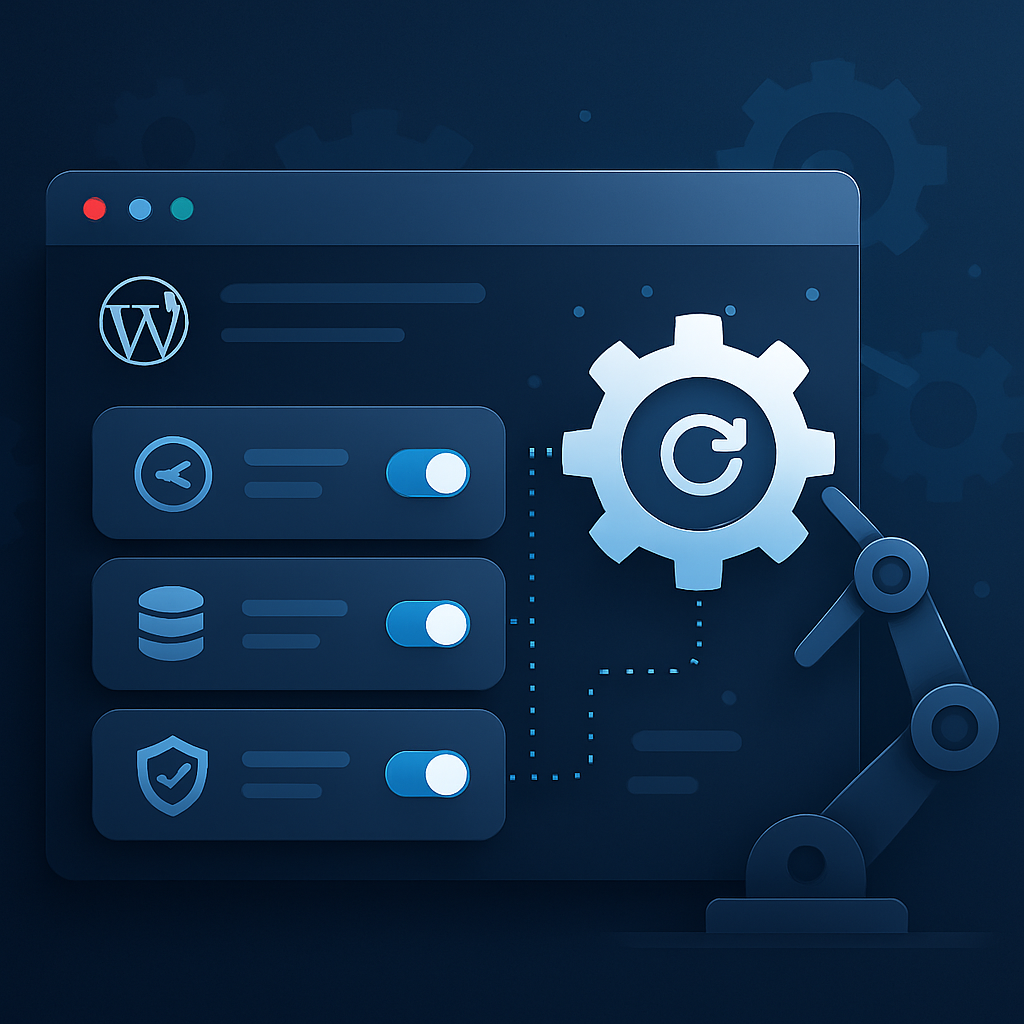
Implementing Automation Across Multiple Sites
Once you’ve identified the tasks to automate, you need a strategy for implementation across multiple client sites:
1. Centralized Management Tools
Consider using centralized management tools that allow you to monitor and manage multiple sites from one dashboard. Tools like:
- ManageWP: Offers a suite of automation tools such as backups, updates, and performance checks.
- InfiniteWP: Allows you to manage multiple WordPress sites with ease.
2. Custom Scripts
If you have the technical expertise, consider creating custom scripts using WP-CLI (WordPress Command Line Interface) to automate repetitive tasks. This can include:
- Bulk updates of plugins and themes.
- Scheduled backups using cron jobs.
3. Regular Review and Adjustment
Automation is not a set-it-and-forget-it solution. Regularly review your automated processes to ensure they are effective and make adjustments as necessary. This includes:
- Monitoring the success rate of updates and backups.
- Adjusting security settings based on emerging threats.
Conclusion
Automating WordPress maintenance for multiple client sites is a strategic move that enhances efficiency and scalability. By focusing on key tasks like updates, backups, security scans, and performance monitoring, you can streamline your operations and provide consistent care for your clients’ websites. As you implement these strategies, remember to continuously review and adapt your processes to align with the evolving landscape of WordPress maintenance.
Frequently Asked Questions
- What tasks can I automate for WordPress maintenance?
- You can automate updates, backups, security scans, and performance monitoring.
- Are there plugins that help with automation?
- Yes, plugins like Easy Updates Manager, UpdraftPlus, and Wordfence can help automate various maintenance tasks.
- How can I manage multiple WordPress sites efficiently?
- Using centralized management tools like ManageWP or InfiniteWP allows you to oversee multiple sites from one dashboard.
- Is it safe to automate updates?
- Automating updates is generally safe, but it’s essential to have backups in place in case of incompatibilities.
- Can I create custom automation scripts?
- Yes, if you have technical skills, you can use WP-CLI to create custom scripts for automation.
- How often should I review my automated processes?
- Regularly review your automated processes, at least quarterly, to ensure they are still effective.
- What is the benefit of using managed hosting for automation?
- Managed hosting often includes built-in automation features like automatic updates and backups, simplifying maintenance.
- How does automation impact security?
- Automation can enhance security by ensuring timely updates and regular scans, reducing vulnerabilities.