
At the heart of every successful WordPress website lies a collection of well-chosen extensions, each adding new functions and custom features. These expand what WordPress can do, making it ideal for businesses, agencies, and professionals who need more than the basics. In our experience at André WordPress Development Services, knowing how to use these add-ons wisely is what sets thriving sites apart from the rest.
What is a plugin and why does it matter?
A plugin is a software add-on that adds new features to WordPress without changing its core files. Instead of building entire functions from scratch, you simply choose ready-made solutions or custom developments. This approach is flexible, fast, and keeps your main installation stable.
Imagine you want to add a booking system, improve your SEO, connect to a marketing platform, or harden security. Instead of hiring a developer for months, you can often install an existing module or commission a custom one (as we do for our agency partners and business clients). Sites powered by André WordPress Development Services follow this best practice: extend smartly, keep core code untouched.
Safe expansion keeps your site future-ready.
Main use cases for business and agencies
Over the years, we have seen which enhancements are most valuable for companies with growing demands. The popular categories include:
- SEO improvements for traffic growth
- Integrations with CRMs, mailing tools, and analytics
- Security, backups, and firewalls
- Visual builders for brand consistency
- Performance enhancements and caching
- Custom taxonomy or workflow adjustments
Agencies that serve multiple clients rely on a careful selection of add-ons to deliver sites that are robust, fast, and easy to maintain. We know, because the majority of our requests revolve around building custom solutions or managing complex plugin mixes in these environments. If you want to learn more about our custom services, you can read about our WordPress plugin development approach.
How to add plugins the right way
Adding a module is technically easy, but making the right choice has big consequences. At André WordPress Development Services, we always follow a checklist to ensure reliability and avoid future problems.
- Search the official WordPress repository or a trusted vendor.
- Review ratings, support activity, and documentation.
- Check when it was last updated, and make sure it is compatible with the current WordPress version.
- Install using the dashboard under “Plugins” > “Add New,” or upload a vetted .zip file for custom/private plugins.
- Activate, configure settings, and test on a staging site if possible.
When managing several sites, as many agencies do, we recommend creating a written guide or using an internal wiki. This helps teams avoid guesswork. Regular internal audits and a version-controlled approach also pay off for those responsible for many client websites.
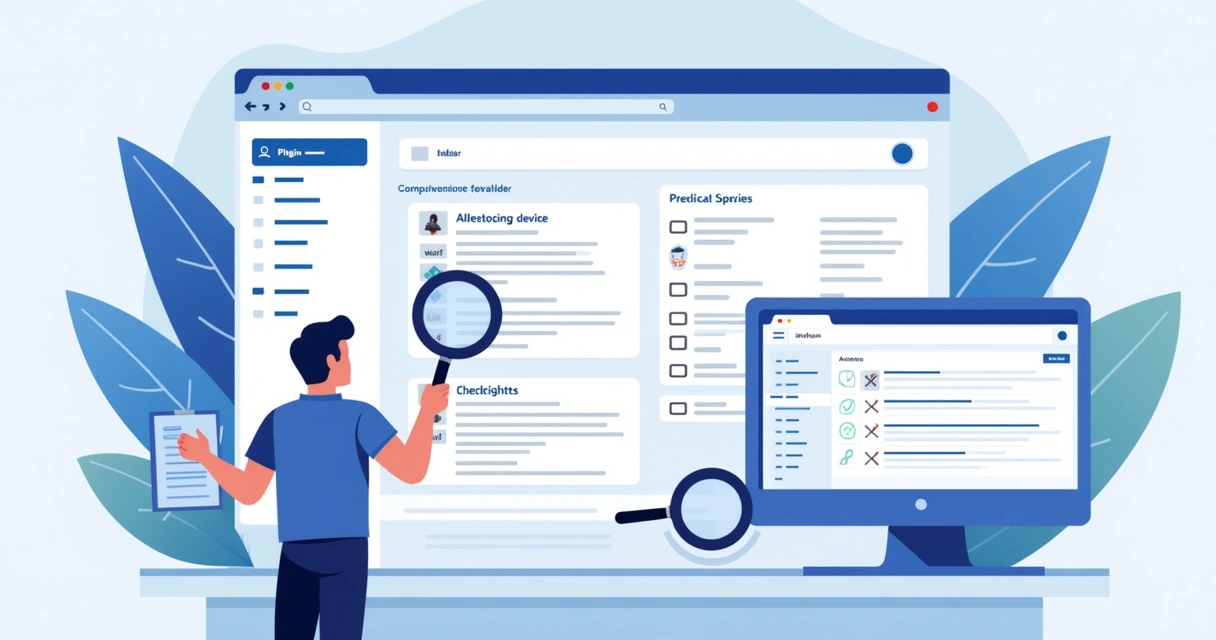
Choosing reliable plugins: what we look for
Not all extensions are built the same. Some are carefully maintained, while others are outdated or unsafe. This is where professional services shine—knowing how to spot red flags saves headaches.
- Active support: If questions go unanswered for weeks, move on.
- Regular updates: Extensions left untouched for months can stop working after a core update.
- Reputation of the developer: Well-known names or established agencies tend to deliver better quality and security.
- Tested compatibility: Look for marks like “Compatible with WordPress 6.x” (or the latest release).
- Thorough documentation: If you cannot find clear usage guides, setup help, or change logs, reconsider.
At André WordPress Development Services, our review process includes manual testing. We also consider the number of active installations and how well it interacts with other installed tools.
A limited number of competitors offer automated scanning and rating, but these tools can miss nuances, like legacy code or minor incompatibilities. What we provide—human review combined with technical checks—results in safer, more stable projects for our clients.
Compatibility: keeping the peace between plugins and WordPress core
Extending WordPress should not mean breaking your website. That is why we focus on compatibility checks before, during, and after installation—especially in high-stakes, multi-client environments.
Plugins must work smoothly with your theme, other add-ons, and the WordPress core. Even one misbehaving module can lead to slow loading, hidden errors, or even make parts of your site unreachable.
- Before installing, read the “Requires” and “Tested up to” information.
- Update WordPress before adding new features when possible.
- Check for known issues between your solutions and your theme.
- For complicated sites, test first on staging copies.
- Keep a backup handy, always.
We routinely help agencies navigate plugin conflicts that others miss. For those interested in deeper details, check out our guide on building custom plugins for WordPress, which shows our approach step-by-step.
Security: risks and how we reduce them
Security issues in the plugin ecosystem are real, and the impact of a poorly secured component can be severe. According to recent NVD reports, some plugins have allowed attackers to inject scripts or access admin areas through overlooked input fields. These are not isolated incidents; vulnerabilities are found regularly.
- A stored XSS bug via the user-agent header affects some versions (read more).
- Shortcode handling issues can let contributors add scripts to pages (details).
- Missing capability checks in certain options updaters allow unauthorized role escalation (see documentation).
- Cross‑site scripting and SQL injection risks expose sensitive data or admin activities (as described here, and here).
We never take shortcuts with safety. Our service always:
- Keeps all add-ons up to date (including premium purchases).
- Removes unused or abandoned extensions.
- Limits user permission so only trusted people gain access to sensitive settings.
- Routinely audits input sanitization and output escaping on custom solutions.
- Watches security advisories for relevant news.
Update first. Clean up old code. Protect your users.
For organizations who need ongoing care, our security and maintenance packages focus on precisely these best practices.

Staying updated and monitoring performance
Every outdated add-on is a potential risk or source of bugs. That is why we track all installations across client portfolios and keep a tight update cycle. WordPress itself makes it simple—under the Plugins page, “Update Available” is shown next to outdated ones. For agencies or multi-site setups, more advanced tools and scripts can batch-update, but always test on a copy before rolling out big changes.
It is also critical to watch for slowdowns or memory spikes after upgrades. Sometimes, a new version adds heavy code or conflicts with others. We monitor site speed and resource use, ensuring stability as features improve.
When sites need custom monitoring or tailored performance tweaks, our team can build or integrate custom tools, as explained on our dedicated custom plugin development page.
Troubleshooting plugin issues: our approach
In practice, issues do happen—maybe a newly added extension breaks something, or two add-ons conflict after updates. Here is how we solve these problems at André WordPress Development Services, especially when managing several client sites:
- Replicate the problem on a staging copy, not the live site.
- Disable all additional modules, then re-enable them one at a time to find the source.
- Check compatibility notes in change logs for both core and all installed code.
- For persistent problems, review PHP error logs or enable WordPress debugging to see detailed messages.
- If a critical bug comes from a third-party solution, contact the developer with specifics or revert to a previous safe version.
- In multi-site or agency settings, document every fix so other team members do not repeat work or face the same issue “blind.”
Our clients count on not just fast response, but predictable, clear strategies that stop small issues from growing into big ones. You can read more about our systematic maintenance and troubleshooting on the WordPress maintenance and security solutions overview.
Conclusion: efficient, safe plugin management is within reach
Managing plugins is both an art and a science. Apply the principles above, and you will have websites that grow with your business, without opening doors to bugs, slowdowns, or hackers. Working with a trusted expert, like André WordPress Development Services, means you benefit from years of pattern recognition, problem-solving, and up-to-date knowledge—so you get the most from every module, worry-free.
Ready for faster, safer, and more manageable WordPress sites? Contact us and see how our custom approach keeps agency and enterprise websites one step ahead.
Frequently asked questions
What is a WordPress plugin?
A WordPress plugin is a small add-on or set of files that adds specific features and functions to your website, without needing to change the main WordPress code. Site owners use them to introduce new tools, automate tasks, connect with services, and more. This allows you to adapt WordPress quickly for almost any purpose—from business sites to e-commerce, media galleries, forms, and security.
How to safely install plugins?
For maximum safety, use the official WordPress repository or get code from reputable vendors. Check reviews, active support, last update date, and compatibility with your WordPress version. Always install using the admin dashboard’s “Add New” option, avoid random downloads from unverified sources, and test on a staging (not live) site when you are running a high-visibility or revenue-related project.
How do I update my plugins?
WordPress alerts you to updates on the Plugins page. Before updating, back up your site. Click “Update Now” next to outdated entries. For agencies, specialized tools help update across multiple sites, reducing manual work—but always monitor for post-update bugs or conflicts.
Where to find trusted plugins?
Start with the official WordPress.org repository for free options. For premium or special features, choose developers with well-documented products, reliable reviews, and proven security. Agencies often combine these with vetted custom solutions, like those we develop for unique client requirements.
Are premium plugins worth the cost?
Premium plugins can provide better support, more frequent updates, and features beyond what free ones offer. For agencies and businesses with serious requirements, the investment is often justified—mainly for specialties like e-commerce, advanced integrations, or unique design controls. In our experience, the peace of mind and added capability usually deliver value well above their price tag.
{
“@context”: “https://schema.org”,
“@type”: “FAQPage”,
“mainEntity”: [
{
“@type”: “Question”,
“name”: “What is a WordPress plugin?”,
“acceptedAnswer”: {
“@type”: “Answer”,
“text”: “A WordPress plugin is a small add-on or set of files that adds specific features\nand functions to your website, without needing to change the main WordPress\ncode. Site owners use them to introduce new tools, automate tasks, connect with\nservices, and more. This allows you to adapt WordPress quickly for almost any\npurpose—from business sites to e-commerce, media galleries, forms, and security.”
}
},
{
“@type”: “Question”,
“name”: “How to safely install plugins?”,
“acceptedAnswer”: {
“@type”: “Answer”,
“text”: “For maximum safety, use the official WordPress repository or get code from\nreputable vendors. Check reviews, active support, last update date, and\ncompatibility with your WordPress version. Always install using the admin\ndashboard’s “Add New” option, avoid random downloads from unverified sources,\nand test on a staging (not live) site when you are running a high-visibility or\nrevenue-related project.”
}
},
{
“@type”: “Question”,
“name”: “How do I update my plugins?”,
“acceptedAnswer”: {
“@type”: “Answer”,
“text”: “WordPress alerts you to updates on the Plugins page. Before updating, back up\nyour site. Click “Update Now” next to outdated entries. For agencies,\nspecialized tools help update across multiple sites, reducing manual work—but\nalways monitor for post-update bugs or conflicts.”
}
},
{
“@type”: “Question”,
“name”: “Where to find trusted plugins?”,
“acceptedAnswer”: {
“@type”: “Answer”,
“text”: “Start with the official WordPress.org repository for free options. For premium\nor special features, choose developers with well-documented products, reliable\nreviews, and proven security. Agencies often combine these with vetted custom\nsolutions, like those we develop for unique client requirements.”
}
},
{
“@type”: “Question”,
“name”: “Are premium plugins worth the cost?”,
“acceptedAnswer”: {
“@type”: “Answer”,
“text”: “Premium plugins can provide better support, more frequent updates, and features\nbeyond what free ones offer. For agencies and businesses with serious\nrequirements, the investment is often justified—mainly for specialties like\ne-commerce, advanced integrations, or unique design controls. In our experience,\nthe peace of mind and added capability usually deliver value well above their\nprice tag.”
}
}
]
}