
Managing more than one website doesn’t have to be complicated, expensive, or time-consuming. Over the years, we’ve learned that with the right strategy, you can oversee several WordPress sites from one place, keeping everything tidy, efficient, and secure. This is especially true for agencies, businesses, and professionals who depend on their web presence. That’s where setting up a network of sites from a single installation becomes a clear advantage. We’re talking, of course, about WordPress Multisite.
One dashboard. Many sites. Total control.
Here, we’ll walk you through what a Multisite network actually is, who benefits from it, and, most importantly, how to get everything running without headaches. If you’re looking for the most effective way to manage multiple WordPress sites—whether for clients, projects, or even separate business branches—this guide cuts through the noise. From setup to best practices, optimizations, and pitfalls to avoid, we cover everything. As you’ll see, our experience at André WordPress Development Services positions us to help you with reliable solutions tailored to your needs, far beyond what generic competitors can offer.
Understanding WordPress Multisite networks
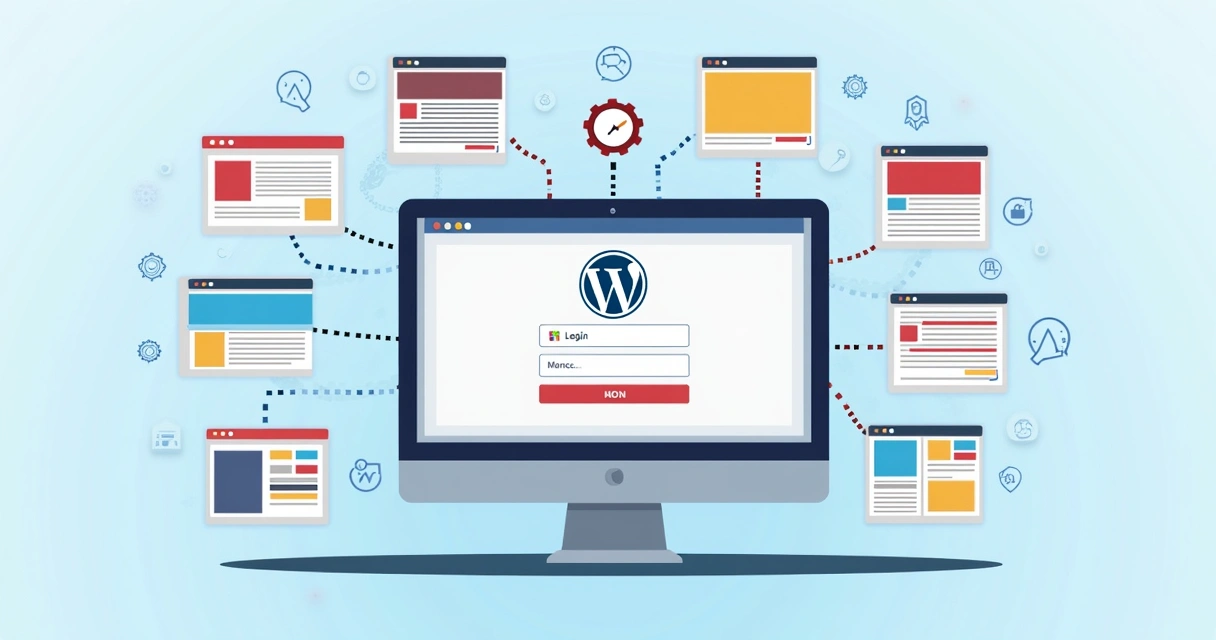
Let’s start with the basics. WordPress Multisite is a built-in feature that allows you to run a collection of websites, all sharing the same WordPress installation. Once you enable this feature, you can create as many new sites as needed—each with its own dashboard, users, and content—while centralizing resources, plugins, themes, and core files. This approach streamlines site management, reduces costs, and enhances your ability to apply settings, security patches, and upgrades across several sites at once.
Multisite architecture isn’t new; it’s been part of WordPress since version 3.0. Over the years, it has become especially popular with organizations and agencies who deal with multiple sites for clients or departments. We’ve implemented this solution for businesses ranging from multi-location retailers to schools and news outlets, helping them keep everything consistent and professional—without extra effort.
Main advantages for agencies and businesses
- Simplified administration: Control all your sites from one dashboard—log in once, and access any site in your network instantly.
- Central plugins and themes: Activate or update plugins and themes across all sites at once, saving both time and licensing fees.
- Consistent branding: Apply uniform themes, branding guidelines, and policies quickly, ensuring every site matches your identity.
- Easier updates and security: Maintain just one set of core files, reducing security risks and patching every site together.
- Resource sharing: Share users, assets, and custom functionality network-wide—with less redundancy.
These benefits are especially valuable when you’re responsible for many sites or client accounts—and, honestly, allow agencies to boost their offerings without increasing complexity.
 When should you use WordPress Multisite?
Before launching a site network, consider if this structure matches your actual goals. Some use cases are clear-cut, while others might be better handled with separate installations. We always recommend weighing the advantages against the requirements of your project.
Best fit scenarios
- Agencies managing multiple clients: If you handle updates, themes, user permissions, and maintenance for several clients, you’ll want the single-dashboard control.
- Educational institutions: Each department or class may require its own website with unique content, yet still share themes and security controls.
- Corporations with separate divisions or branches: Different departments can have individual websites under one roof, maintaining shared branding and security policies.
- Media groups and magazine publishers: Run multiple editorial sites (for brands, regions, or segments) with one team overseeing them.
- Franchise networks and membership organizations: Give franchise owners or chapters their own sites, while keeping central control over features and data.
When not to use it
There are situations where a networked setup isn’t ideal:
- If you want separate plugins or themes not compatible with a shared environment.
- When each site needs its own hosting infrastructure or wildly different server resources.
- If you work with unrelated clients who should never share a server for legal, privacy, or security reasons.
In those cases, stick to independent WordPress installations or explore managed hosting platforms, although, in our experience, the flexibility and cost-efficiency of Multisite win out for most business-centric use cases.
How a Multisite network works
The core idea of Multisite is this: every site remains independent in content, users, and configuration, but shares a codebase (core files, plugins, and themes) and database.
One installation. Many sites. Endless opportunities.
The magic happens in two main layers:
- Super admin dashboard: This is where you, as the network manager, add sites, assign administrators, activate plugins and themes, and set network-wide configurations.
- Individual site dashboards: Each site still gets its own WordPress dashboard, where local admins manage posts, pages, settings, and more—within permissions set by the Super Admin.
That separation gives both flexibility and centralized oversight—a combination valued highly in agencies and businesses, as we’ve proven for dozens of clients.
Preparing your hosting for a Multisite network
One of the first things to confirm is whether your hosting stack will support a network setup. Not all hosts are ideal for this; in fact, shared hosting plans often lack the power or permissions needed for serious use. In our experience, stability, and performance depend heavily on the right infrastructure.
What to look for in a host
- Support for wildcard subdomains (if you plan sites as subdomains)
- Access to wp-config.php and .htaccess files for direct edits
- Ability to allocate enough memory (at least 256MB per PHP process is usually safe)
- Flexible database encoding (utf8mb4 recommended for modern WordPress setups)
- Scalable storage and bandwidth, for future growth
Choose a reliable, business-grade host—whether on VPS, cloud, or a robust managed WordPress package. We consistently set up Multisite installations on top providers, but also help clients migrate when their current host can’t cope with a growing set of sites.
For step-by-step migration guidance, including handling large databases and preserving existing URLs, our in-depth resource on advanced WordPress migrations walks you through it.
Step-by-step: Setting up your Multisite network
Moving from a regular WordPress install to a networked system may sound daunting. It isn’t—when you follow a careful sequence. Here’s how we do it for business and agency clients, based on years of hands-on work and backed by resources like the Build and Manage a WordPress Multisite course at USC for fundamentals.
1. Back up your website
The first step never changes: Always back up your current WordPress site before making major changes. This includes your files and database. Even with our expertise, unexpected things can happen—so we never skip this step.
2. Deactivate all plugins
Temporarily switch off every plugin. This makes sure nothing interferes with the setup process. Don’t worry; you’ll reactivate them afterward.
3. Enable Multisite in wp-config.php
- Access your site via FTP or your hosting file manager.
- Open wp-config.php, and above the line that says “/* That’s all, stop editing! Happy blogging. */”, insert:
Define(‘WP_ALLOW_MULTISITE’, true);
Save and upload. Now, when you reload your WordPress admin, a new option appears in the Tools menu: “Network Setup.”
4. Choose your network type: Subdomains vs. subdirectories
WordPress lets you organize network sites either as subdomains (site1.example.com) or subdirectories (example.com/site1). Your choice depends on technical requirements and branding needs.
- Subdomains are better for sites needing unique brands or standalone SEO profiles. But they require your host to support wildcard DNS (e.g., *.example.com points to your server).
- Subdirectories are simpler, fitting when the network is a single brand with several sections. Note: If your site is older than a month, WordPress recommends (and sometimes enforces) subdomains to avoid breaking URLs.
5. Follow the on-screen instructions
After selecting your type, WordPress will show two code snippets: one for wp-config.php, another for .htaccess. Copy and paste each exactly where instructed. Save both files.
6. Log in again and access your network dashboard
Sign out, then log back in. Now, you’ll see a new “My Sites” item in the toolbar—this leads to the network admin, where you’ll manage everything.
7. Reactivate plugins and begin configuring your network
From here, start adding sites, managing users, and tuning network settings—topics we’ll cover below. Try using our maintenance and security guidance for extra peace of mind.
 Naming, domains, and domain mapping
Multisite installations support three principal methods for how your individual sites appear to visitors. Understanding the differences lets you plan ahead, avoid SEO issues, and keep user navigation smooth.
Subdomain structure
In this format, new sites live as siteA.yournetwork.com, siteB.yournetwork.com, etc. This method is clean, works well for grouped brands, and is easy to deploy once wildcard DNS is in place.
Configure wildcards at your DNS provider (add an A record for *.yourdomain.com) and point it to your server. Most hosts offer detailed DNS settings; if not, we advise switching for better future flexibility.
Subdirectory structure
Sites appear as yournetwork.com/siteA, yournetwork.com/siteB, and so on. This is common for sections of a single main brand, or if you’re splitting a content-heavy corporate website into multiple “microsites.”
Older sites sometimes force subdomains for compatibility, as mentioned above. The same underlying permissions, plugins, and security settings apply to either format.
Custom domain mapping
Perhaps you want site1.com, site2.com, etc. for every networked site. This is possible through “domain mapping.” In recent WordPress versions, mapping is built in, but you must:
- Add each new domain to your hosting (using parked or addon domain setup)
- Point domains’ DNS to your server
- Configure domain mapping in the Network Admin under Sites > Edit > Site Address (URL)
Our team assists clients with complex mappings, particularly when SSL and custom redirects are required. For more information on mapping and integration—such as advanced marketing or analytics—review our integrations and solutions resources, which show how we go beyond basic setups.
Adding and managing new sites in the network
Once your architecture is running, adding a new site is straightforward. From the Super Admin dashboard, go to Sites > Add New. You’ll set the site address, title, and admin email. After that, the site is live, with its own dashboard.
Assigning site admins and managing users
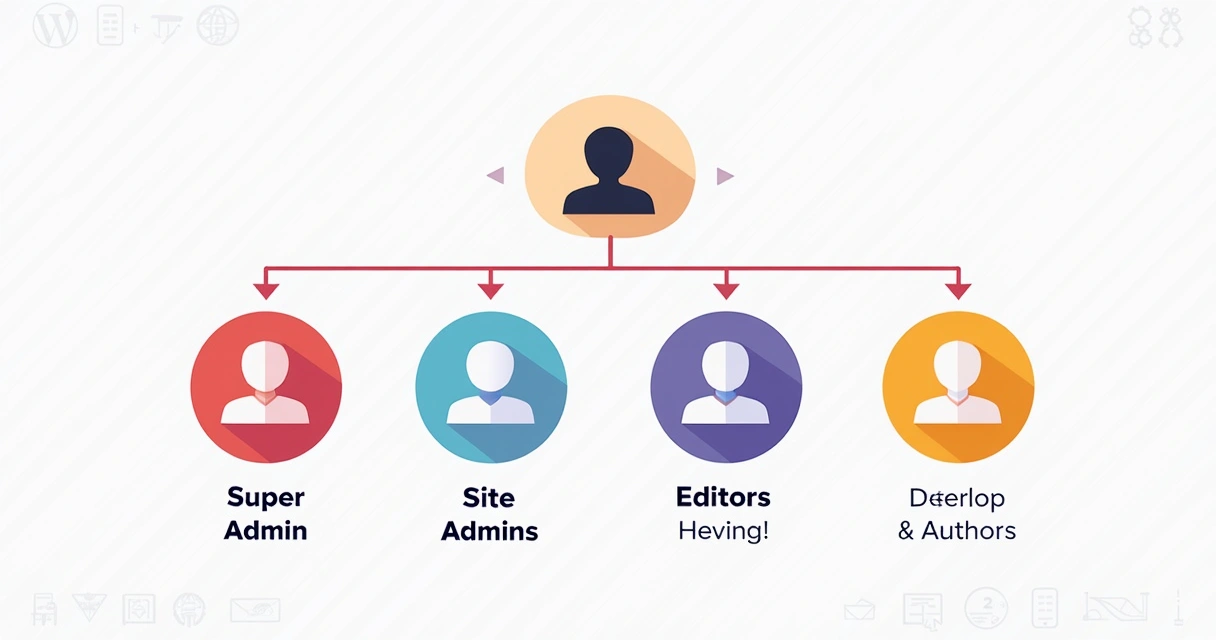
Each site in your network can have one or more local administrators (“Site Admins”), who can run content, publish posts, and manage site settings. Site Admins cannot install network-wide plugins or change core themes—those are reserved for you, the Super Admin.
Adding users to sites can be done from Network Admin > Users > Add New, or directly within the individual site. You can also grant network-wide access, making certain users able to log into any site.
 Managing user roles across the network
- Super Admin: Full control over everything—only assign this to trusted staff.
- Administrator: Runs an individual site, with permissions limited to that site.
- Editor, Author, Contributor, Subscriber: Typical WordPress roles for managing content, users, and settings inside sites.
If centralized user management and support are important for your business, Multisite brings clarity. We configure custom permissions for agencies who need strict role separation, showing how flexible these controls are.
Maintaining plugins and themes in your network
WordPress Multisite allows you to install plugins and themes just once, then selectively “network activate” them across all sites, or enable them for single sites as needed. This setup saves enormous time and prevents plugin clutter or outdated code.
- From the Network Admin dashboard, install the plugin as usual (Plugins > Add New).
- Click “Network Activate” to enable it everywhere (site admins can activate on their local site if you allow that feature).
- Themes work similarly—Super Admins install themes, then enable or disable them per site as desired.
This means standardized quality, fewer vulnerabilities, and simpler updates. With our plugin development and theme development expertise, we’ve built custom solutions that fit within Multisite architecture, making management a breeze for both agencies and corporate teams.
Best practices for updates
- Test critical updates in a staging environment before rolling out network-wide.
- Always maintain a site and database backup before large-scale plugins or core updates.
- Schedule regular update checks—at least weekly for client networks.
- Keep an audit log for transparency and troubleshooting after any network-wide changes.
Configuring security in a Multisite environment
With more sites comes more responsibility. Your network should never expose a weak link; if one site is compromised, others may be at risk. We have built robust procedures to keep networks safe and resilient.
Key security steps
- Force strong passwords and two-factor authentication for all users, especially Super Admins and site managers.
- Limit plugin installs to trusted sources—avoid software not tested for Multisite environments.
- Restrict file upload permissions to minimize risk from rogue files or malware.
- Implement automated malware scans and security plugins, installed at the network level.
- Keep software, plugins, and themes up to date. Even well-coded sites fall behind if not watched regularly.
Our maintenance and security services are tailored for multisite clients, covering monitoring, updates, regular audits, and incident response. Compared to off-the-shelf services, we offer continuous oversight and direct support—which most competitors simply can’t match in terms of attention or speed.
Running backups for your network
Backing up a network is different from single-site WordPress setups—especially with custom domain mappings or large datasets. We recommend:
- Full offsite backups (files and database) at least daily; more frequently for high-traffic networks.
- Test restores regularly in a staging environment to confirm workflows.
- Use plugins proven reliable for Multisite (UpdraftPlus, BlogVault are good examples), but always keep at least one manual backup routine.
We design tailored backup protocols, including redundancy and automated disaster recovery plans, for all our managed Multisite clients. For agencies, this minimizes the risk of downtime and data loss, preventing reputational harm.
 Performance and scalability: Keeping things fast
One myth is that WordPress Multisite is slow or can’t handle traffic. That’s not our experience at all—if you plan thoroughly and use the right tactics.
Performance tips specific to multisite
- Object caching: Deploy caching solutions supporting networked WordPress (like Redis or Memcached).
- Database optimization: Clean up unused tables, expired transients, and orphaned data regularly.
- Use a CDN: Deliver static assets (images, scripts, styles) via a content delivery network to offload your server.
- Limit network-wide plugins: Only network-activate what every site needs.
- Monitor with analytics: Use network-wide dashboards to watch for slow sites or resource spikes—for instance, the Google Analytics integration on multisite described by the University of Michigan is a solid approach.
Need to migrate a growing network or add new sites? Our scalability planning goes further than most generic agencies, with experience in optimizing large networks for speed and uptime.
Key admin tasks and ongoing management
Once your Multisite network is running, daily or weekly tasks include:
- Adding/removing sites and users.
- Approving content or custom themes.
- Coordinating updates and communicating timing with site admins.
- Monitoring and reporting on usage, security, and SEO across the network.
Many agencies and businesses appreciate the freedom to delegate: Our model lets you appoint staff with as much or little power as you prefer, while we handle deeper technical work—adding stability and reliability to your operations.
How to monitor and troubleshoot your network
Multisite environments rarely break, but with many sites, the chance of a misfire goes up slightly. Proper monitoring and proactive troubleshooting is the difference between a minor glitch and a critical outage. Here’s how we keep client networks resilient:
Monitoring essentials
- Set up uptime monitors for both the network and individual sites.
- Track performance (load times, error logs, and server response) using tools like New Relic or WordPress-specific health dashboards.
- Audit site storage and bandwidth—if one site spikes, identify and resolve before it drags down the rest.
Common troubleshooting tips
- If one site goes offline, check for recent plugin or theme updates—roll back as needed.
- For SSL or mapping problems, confirm domain settings and cert status. Mismatched domains are the #1 source of accessibility complaints.
- Site-specific errors? Temporarily deactivate custom plugins or themes for that site. If the problem vanishes, update or replace the culprit.
We keep detailed logs for every network we manage and provide immediate restoration or rollback when issues are caught. That level of responsiveness sets our services apart from hosts or agencies that leave you “in the queue.”
Tips for scaling up as your network grows
Multisite works for anywhere from two to several hundred sites. However, as you scale, consider:
- Database performance tuning, especially for networks with high-volume content or user activity.
- Automating site setup for new departments or clients, using custom scripts or plugins.
- Delegating site administration to trusted staff, while maintaining Super Admin oversight.
- Breaking out static assets (images, PDFs) onto dedicated storage if your hosting limit is near.
- Planning network upgrades during low-traffic windows to avoid service disruptions.
What sets our service above the competition
It’s easy to find generic WordPress agencies, but few specialize in long-term, customized Multisite networks. Most competitors offer packaged maintenance or support, but lack in-depth expertise in troubleshooting or scaling networks for demanding agencies and expanding businesses. At André WordPress Development Services, we provide:
- Expert Multisite planning, launch, and monitoring for agencies handling client websites
- Custom plugin and theme development built for network efficiency
- Proactive maintenance, security, and backup strategies
- Hands-on migration, integration, and optimization for every client
- Fast, personal support—no waiting in line or getting generic responses
That’s why we recommend going beyond what most competitors provide and trusting your network to real specialists with a record of reliable, transparent, and scalable service.
 A few common challenges—and how to avoid them
No system is without its learning curve; a few recurring challenges with WordPress Multisite include:
- Plugin or theme compatibility: Not every extension works in a networked context. Stick to plugins tested and supported for Multisite, and use custom solutions when needed.
- Unintended “network-wide” changes: Be cautious before activating features for all sites. Test on a staging environment and inform stakeholders beforehand.
- SSL and domain issues: Custom domain mappings can break if SSL certificates aren’t kept current, or if DNS changes go untracked.
- Database bloat: Each site creates new tables; over years, this can slow down even a powerful server. Regular cleanup is a must.
We help agencies and businesses address these pain points proactively, with optional network health checks and ongoing support that most competitors simply don’t offer.
Bringing it together: Maximize value from your network
Overseeing a group of WordPress sites doesn’t have to mean duplicated work or unnecessary costs. When you set up a Multisite network—especially with a service built on real-world experience like ours—you get faster updates, tighter security, and the power to expand as your organization grows.
If you want a network with beautiful custom themes, unique plugins, and reliable maintenance, we’re ready to help. Take a look at our maintenance solutions, plugin development, and theme services for more details—or reach out directly for a custom Multisite roadmap tailored to your business. Experience the difference of a truly professional, future-ready network with André WordPress Development Services guiding every step.
Frequently asked questions
What is a WordPress Multisite network?
A WordPress Multisite network is a feature in WordPress that allows you to manage multiple websites from a single WordPress installation, with unified administration, shared plugins, and consistent updates across all sites. Each site remains independent in terms of content and users but shares core software, plugins, and themes, making it ideal for agencies, organizations, and businesses managing several sites.
How do I enable Multisite in WordPress?
To enable Multisite, edit your wp-config.php file and add define(‘WP_ALLOW_MULTISITE’, true); above the “Happy blogging” line. Once saved, refresh your admin dashboard, go to Tools > Network Setup, and follow the on-screen prompts to configure your network as subdomains or subdirectories. You’ll add further code to both wp-config.php and .htaccess as instructed. Then, log in again to access the network dashboard.
Can I add new sites to my network?
Yes, you can add unlimited new sites in your Multisite network from the Super Admin dashboard by selecting Sites > Add New and providing basic setup information for each site. Every new site gets its own admin panel and can have unique users, content, and themes within the overall network framework.
Is WordPress Multisite good for beginners?
Multisite can be managed by beginners with care and a willingness to follow step-by-step instructions, but it is best suited to users who understand basic WordPress administration and have access to technical hosting features. For complex or client-facing networks, we recommend relying on professional oversight (like our service) to ensure smooth performance and strong security.
How do I manage plugins across sites?
Install plugins just once from the Network Admin dashboard, then “Network Activate” them to apply across all sites, or enable for specific sites as needed. Only Super Admins can install and manage plugins network-wide. This system streamlines updates and ensures only vetted, secure code runs on your entire network, helping reduce conflicts and downtime.