
In our years supporting agencies and brands through André’s WordPress development services, we have seen firsthand how careful theme customization can make or break a web project. When you want to tweak your website’s design or add new features without risking your foundation, there is one tool that stands above the rest: the child theme. Building on a parent theme gives you freedom and stability. This guide will walk you step by step through the right way to build a custom child theme for WordPress, fast and safely.
Table of contents
- What is a child theme and why does it matter?
- How parent and child themes work together
- When should you use a child theme?
- Benefits of using a child theme
- How to create a child theme step by step
- Enqueueing styles correctly
- Customizations and best practices
- Troubleshooting common issues
- Block themes, full site editing, and child themes
- Tools and plugins for beginners
- Examples and success stories
- Conclusion: building for tomorrow
- Frequently asked questions
What is a child theme and why does it matter?
A child theme is a WordPress template that inherits the code, style, and functionality of another theme, known as the parent theme, allowing you to safely customize your website without touching the core files. When working on WordPress development services, we regularly rely on this method to deliver results that hold up over time. Think of it as a safe sandbox for making changes: your website keeps its original look and feel, while modifications, styles, and new features are all stored in a separate, update-friendly space.
Custom, but safe—this is why child themes matter.
If you only tweak a WordPress site by adding code to the main theme, all changes are at risk of being lost with the next update. That’s why the child theme approach is a standard in our agency work. It keeps client projects robust and updates stress-free.
Quick summary—why the child approach?
- Preserves custom changes after parent theme updates
- Simplifies development and troubleshooting
- Makes reusing core design elements much easier
- No risk of breaking parent theme files
We love seeing clients breathe easier when they know their website updates won’t undo months of hard work. In fact, it’s one of the first lessons we share with anyone managing their WordPress setup.
How parent and child themes work together
To understand the power of the child theme pattern, it’s worth seeing how parent and child themes share responsibility. When you activate a child template, WordPress uses files from the child version first. If something is missing, WordPress falls back to the equivalent file in the parent theme. This inheritance ensures that your changes play well with any updates or new functionalities.
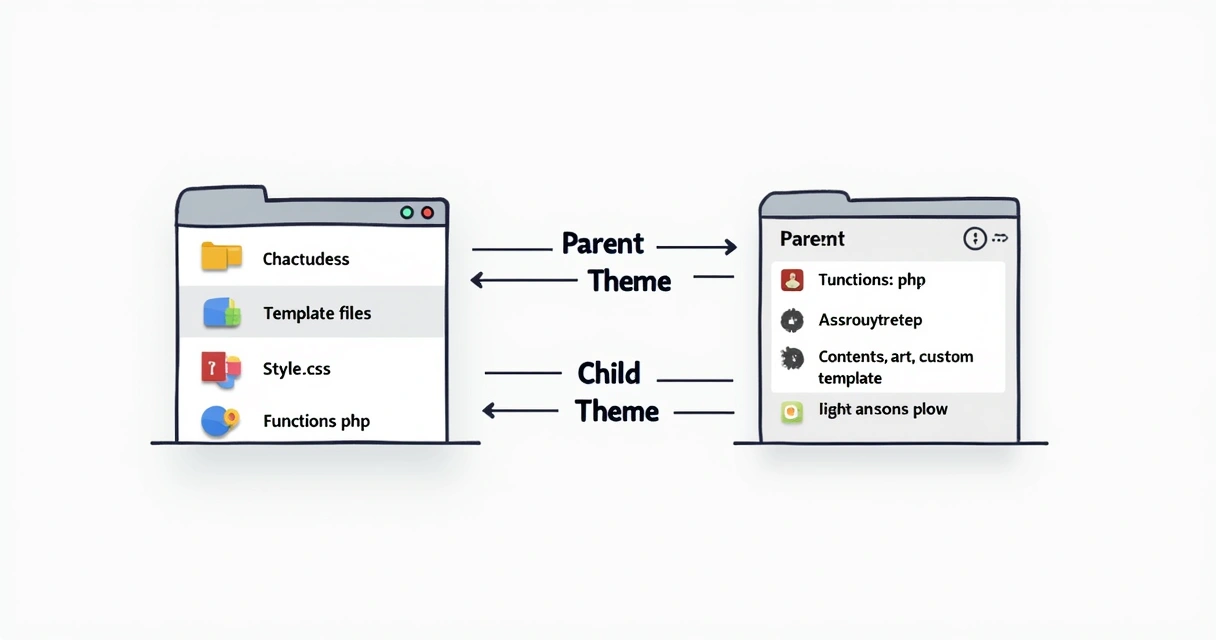 Your child theme acts as an extension, not a replacement. This means you only need to add or change the specific files that you want to customize.
What happens behind the scenes?
- The parent theme houses the bulk of files: templates, scripts, styles, functions.
- The child theme has at least a style.css for its unique identifiers, and can add or override other files as you need.
- On each request, WordPress pulls files from the child, then looks to the parent if a file isn’t found.
The real beauty: you can add new features, edit CSS, or adjust layouts, all while the foundation—held in the parent theme—remains untouched and updatable. This is great for agencies with clients who depend on regular improvements, but never want unwanted surprises after a theme update.
Parent keeps the code, child adds your mark.
When should you use a child theme?
From our experience leading WordPress theme development for agencies and businesses, we see three main situations that call for a child structure:
 You want to adapt an existing theme. Suppose you love the look, but the colors or layout aren’t right. A child theme lets you make these changes without “forking” the original codebase.
- A site needs continuous or frequent updates. If your parent theme will get updated from the developer, using a child theme protects your edits from being overwritten.
- Agencies handing off projects to clients or other developers. Clarity is everything. With changes isolated in a child, future work is transparent and safe.
If you’re only making simple tweaks, like adding custom CSS in the WordPress Customizer, a child is not always necessary. But the moment you need to edit PHP files, functions, or complex layouts, using this structure is the smart path. It’s the safest option for anybody looking to maintain and grow a digital presence that can flex to new demands.
Benefits of using a child theme
Why go to this effort? We see lasting value in a child approach for all levels—single business sites or sprawling networks for agencies. Here are the concrete benefits:
- Change with confidence: You can edit templates, styles, and functions freely, knowing the parent theme’s files remain unaltered. Updates won’t erase your changes.
- Easy rollback and troubleshooting: If a customization breaks the site, disabling the child theme quickly restores normal operation. No panic, no lost work.
- Smooth collaboration: Other developers (or your future self) will instantly see what was customized, as changes are isolated in the child.
- Clean upgrade path: Parent theme can be safely updated, keeping its improvements—while your copy holds onto the unique parts.
- Future-proof your work: As your business or clients’ needs expand, you can layer on enhancements without reworking the foundation.
Make changes boldly—the safety net is real.
Client perspective: safe, scalable, stable
With our custom WordPress theme development approach, many clients return to us for further enhancements knowing their investments are preserved. Upgrade paths remain clear, minimizing total cost of ownership, with predictable maintenance—especially when combined with reliable support.
It’s more than convenience. This solution builds trust.
How to create a child theme step by step
We often get asked for a simple, practical, and secure roadmap to set up a custom child. Here’s the sequence we follow internally and recommend to all clients and agencies aiming for peace of mind and consistent results.
Step 1: Decide on your parent theme
Pick a well-maintained and reputable theme for your project. It could be a standard one like Twenty Twenty-One, Astra, or GeneratePress, or any agency-favored template. Your child version will always require the parent theme installed and present in the /wp-content/themes directory.
Step 2: Create a new folder for your child theme
Open your WordPress setup with FTP or your hosting’s file manager. In /wp-content/themes/, create a new directory. Naming convention is usually yourparenttheme-child (for example, twentytwentyone-child).
- Avoid spaces or special characters in folder names
- This folder sits right beside the parent theme
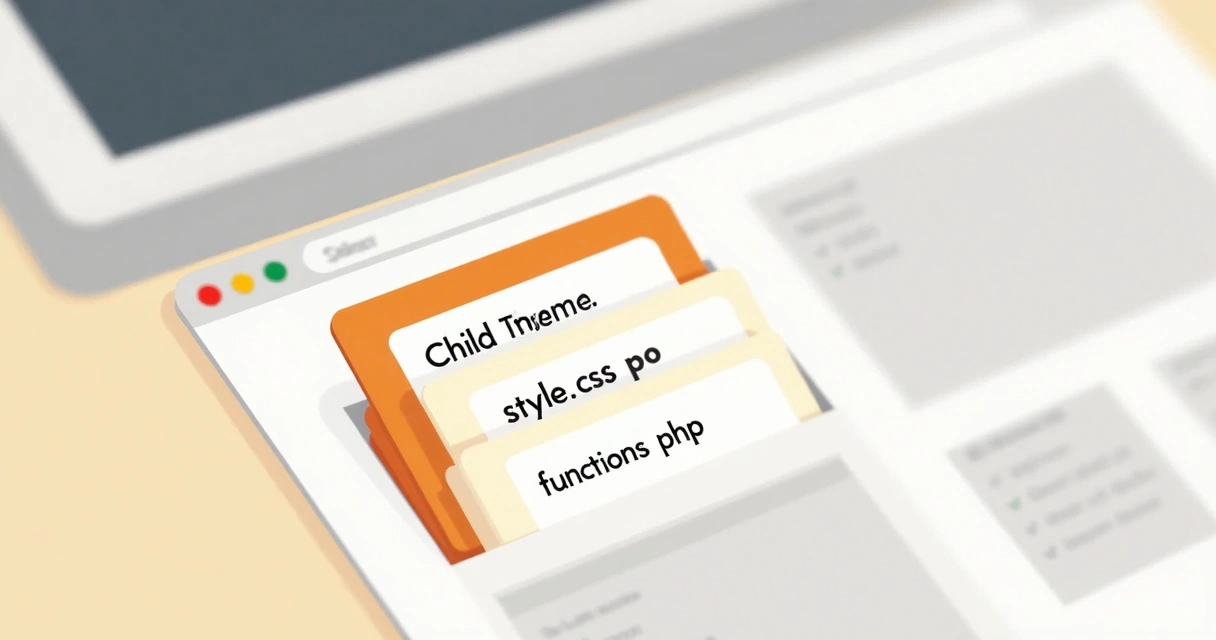 Step 3: Add a style.css file with proper headers
The style.css file is required for every WordPress theme, and for the child, it includes the key header WordPress reads to recognize the connection to its parent.
Here’s a simple template:
/* Theme Name: Twenty Twenty-One Child Template: twentytwentyone Version: 1.0.0 Description: Child theme for Twenty Twenty-OneAuthor: Your Name or Agency */
- Theme Name: Give your child theme a unique, readable name. This appears in the Appearance menu.
- Template: This must match the folder name of the parent theme. It’s case-sensitive.
You may add other details (URI, tags, etc.) as you like, but these are the main requirements.
Step 4: Create a functions.php file
This file adds advanced features or changes behavior. In a child, it is loaded in addition to the parent’s functions.php—not as an override. Any new code in child/functions.php simply supplements (not replaces) the parent.
For most projects, your child’s functions.php is used to enqueue the parent and child styles (which we will show below), and to hold future code snippets you may need.
Functions.php extends, not replaces.
For now, create a blank functions.php in your child theme folder.
Step 5: Activate your child theme
Go to your website’s Appearance > Themes section in the WP admin area. Your new child theme should now be listed. Hit Activate.
 You might notice your site doesn’t look quite right just yet. That’s because we haven’t correctly loaded the parent’s stylesheet—a step many skip by accident.
Enqueueing styles correctly
Modern WordPress best practice is to enqueue styles using wp_enqueue_style in functions.php, not with @import inside style.css. The old @import method slows sites and can create weird conflicts.
Here’s how we do it—add this code to your child’s functions.php:
Function my_child_enqueue_styles() { wp_enqueue_style(‘parent-style’, get_template_directory_uri() . ‘/style.css’); wp_enqueue_style(‘child-style’, get_stylesheet_directory_uri() . ‘/style.css’, array(‘parent-style’)); } add_action(‘wp_enqueue_scripts’, ‘my_child_enqueue_styles’);
- This ensures the parent’s styles load first, then your child’s adjustments on top.
- Keeps performance high and inheritance predictable.
This code makes custom CSS from your child theme override styling from the parent, giving you full control. You’re now set up to begin customizing layouts, templates, colors, and features.
 Customizations and best practices
With the boilerplate in place, your child theme lets you add or override almost any part of your website’s design or features. But how and when should you make changes?
Best practice 1: Only copy what you need
Do not copy and paste entire directories of PHP templates or scripts into your child folder “just in case.” Only add the file you intend to change. This keeps your website lean and simple to maintain. If the parent theme updates a file you haven’t overridden, you benefit from the improvements right away.
Best practice 2: Overriding templates smartly
To change a layout, copy the template file you want to adjust (for example header.php or single.php) from the parent into your child theme’s root directory. WordPress will use your version and ignore the parent’s version for that specific file.
- Keep the same file structure for subfolders (like /template-parts/ or /woocommerce/ for eCommerce customizations).
- Add notes to the top of custom template files, explaining why you made the adjustment, for future clarity.
Best practice 3: Add new functions, don’t overwrite
Avoid redeclaring entire functions from the parent theme in your child’s functions.php whenever possible. Instead, use WordPress hooks—actions and filters—to change behavior, or write new functions prefixed with your own namespace.
 If you really need to replace a parent function, first check if the parent wrapped that function in a
 function_exists() check. Otherwise you may need to unhook the parent function before adding your own.
Best practice 4: Keep your child theme up-to-date
If the parent theme’s structure changes (new hooks, renamed files, different markup), review your child folder and update overridden files. This is easier when you keep customizations minimal and well-documented.
For agencies managing multiple brands or projects: create internal documentation tracking which files, functions, or CSS rules you customized in each project.
Best practice 5: Test everything after updates
- Before updating the parent theme, back up everything—database, parent, and child themes.
- Update on a staging server or with a maintenance mode plugin active if possible.
- After updating the parent, carefully check your site to confirm all child theme customizations still work.
Following these steps ensures your changes are safe, stable, and ready for future improvements.
 Troubleshooting common issues
Working with child themes is generally trouble-free if you follow WordPress best practices, but it’s not uncommon to run into a few snags. Here are some quick solutions to common problems we have seen when supporting agency and business sites.
Problem: The child theme doesn’t appear in the WP dashboard
- Check that style.css includes the correct Template: line—this is the folder name of the parent, not its display name.
- Make sure your folder contains at least style.css with proper headers.
If the Template field in style.css does not match the parent’s folder exactly (including capitalization), WordPress will not recognize the relationship and will not list your child theme.
Problem: The website is broken or looks unstyled after activating the child
- Make sure you’re enqueueing the parent theme’s styles using
wp_enqueue_stylein functions.php. - An @import in style.css can slow things down or be ignored entirely in some setups—always move to enqueueing.
Problem: Custom template or CSS changes aren’t visible
- Check your directory structure—did you put files in the right place?
- Clear your caching plugins and browser cache.
- Check file priority: Are you using the correct hooks, selectors, and filenames?
Most problems trace back to a misnamed file or misplaced code snippet.
Problem: White screen or PHP errors appear
- Look for syntax errors in your changes.
- Did you copy a parent function without renaming it?
- Activate WP_DEBUG in wp-config.php to get error info, then fix the specific line.
We recommend using version control like Git for bigger projects, making troubleshooting and rollbacks much easier.
Block themes, full site editing, and child themes
With the rollout of Full Site Editing (FSE) in WordPress 5.9, the way we build and customize themes is evolving. Block themes, or themes built with the new block-based system, allow you to control site-wide design (headers, footers, templates) using visual blocks instead of code.
 According to the City University of New York, Full Site Editing significantly reduces reliance on coding or creating a classic child theme for many types of visual customization. However, in our agency projects, we see both styles used:
- Classic (PHP-based) themes: Need a child theme for safe customization.
- Block themes: Structure can be changed visually, but for advanced changes or new block types, creating a child theme still has advantages.
We evaluate project needs; when deep or agency-level changes are needed, a child template continues to offer more flexibility and future-proofing, especially for long-term projects with critical maintenance standards like ours.
In short: block themes and FSE are making basic website changes more accessible. But for agencies, enterprise sites, marketing-driven brands, and clients expecting heavy custom code or curated workflows, the traditional pattern remains very valuable—not to mention all legacy (non-block) themes actively used in production.
Tools and plugins for beginners
Some users feel uneasy working with FTP, code editors, and code snippets. That’s fine. For smaller shops, bloggers, or agencies looking to quickly generate a child scaffold without writing code by hand, several tools exist.
- Child Theme Configurator: This plugin scans your parent, creates all required files, and even customizes CSS and settings, all via your dashboard.
- WP Child Theme Generator: A simple plugin for instantly generating a ready-to-activate starter.
- One-Click Child Theme: Fastest way to generate a child from any installed parent template—no FTP needed.
 Be aware: automated tools save time but still require you to understand what you’re changing. Many “one-click” solutions don’t explain which files should and should not be copied, or how to maintain safety during updates. For agencies, we recommend reviewing anything generated by a plugin and adding notes or custom best practices.
We also provide ongoing maintenance and support that can quickly resolve such tasks, keeping each project running predictably.
Examples and success stories
Let’s look at agency and business cases where a proper child theme strategy delivered real wins, based on our work and the experience of teams we support.
Agencies with multiple client sites
Agencies managing many client websites need to ensure that a single theme update doesn’t disrupt custom branding, layout tweaks, or niche features. By isolating custom code and design changes in child themes, they enjoy smooth parent theme upgrades, fast bug fixes, and no client downtime.
Customizations stay safe. Parent improvements keep flowing.
Businesses with evolving branding
Brands often need to refresh colors, typography, or layouts with seasonal campaigns. With a child theme in place, new assets can be added swiftly—while the site’s backbone and accessibility stay intact.
 Marketing-driven sites with performance tweaks
Performance is not just about speed, but clean code. With isolated scripts and CSS in the child folder, optimization tasks are faster, and marketing agencies can iterate on landing pages without waiting for theme vendors to catch up.
For more best practices, agencies can review our guidance on custom WordPress theme strategies for agencies, or advice on responsive design for marketing teams.
Lessons learned
- Always document every customization and its reason. This saves hours of detective work six months later.
- Never blindly copy parent templates—update only when you must.
- For business users and agencies alike, the time spent setting up child themes pays off in stability and flexibility.
Conclusion: building for tomorrow
Building and maintaining a WordPress website is more than just choosing a template and launching it. Safe, sustained growth relies on best practices that keep custom work separate from the core theme’s code. Using a child theme empowers owners, agencies, and marketers to add, refine, or even radically change online appearances—with confidence and security.
We see the child theme pattern as a future-proof strategy for any professional WordPress project. It creates order, preserves quality, and makes collaboration easier—everything you want from a robust digital foundation.
 If you’re ready to take your website to the next level, or want to be sure your current customizations are safe and future-ready, reach out to us for tailored WordPress development services. We can provide audits, consulting, or full theme setup to meet your needs.
Frequently asked questions
What is a WordPress child theme?
A WordPress child theme is a separate theme that inherits the functions, features, and design of a parent theme, letting you modify the site’s look and behavior safely. The child theme keeps custom changes apart from the original template’s code, so you can update the parent theme without losing your edits. This pattern is popular with agencies and site owners who want custom changes with maximum stability.
How do I create a child theme?
To build a child theme, create a new folder in /wp-content/themes, add a style.css file with the correct headers, and (optionally) a functions.php file for extra code. Use wp_enqueue_style in functions.php to load the parent and child styles in the proper order. Activate your new theme from the Appearance panel in WordPress admin and begin customizing as needed.
Is it safe to use a child theme?
Yes, using a child theme is considered the safest way to modify a WordPress site’s code, as it separates your changes from the parent theme’s files. This means updates to the parent won’t erase or affect your modifications. For business-critical or complex websites, we always recommend this pattern to guard against losing work.
Can I update the parent theme safely?
Absolutely. Updating the parent theme is safe as long as your customizations are contained in a child theme. WordPress will only use files in the child folder if they exist, otherwise it loads them from the parent. This system helps you keep security patches, new features, and vendor improvements, without risking your custom site logic.
Why should I use a child theme?
Using a child theme allows you to safely add new features, change layouts, or adapt styles without touching the original code. It gives you version control, easy updates, and much easier troubleshooting. If you want to evolve your site without setbacks or surprises, a child theme is the right way.