





Content Summary
Managing multiple WordPress client sites can be a daunting task, especially when it comes to regular maintenance. Automating this process not only saves time but also ensures that each site remains secure, up-to-date, and performing optimally. In this article, we will explore effective strategies for automating WordPress maintenance across multiple client sites, providing you with a technical checklist to streamline your workflow.
Understanding the Importance of Automation in WordPress Maintenance
As a WordPress developer with extensive experience, I can attest that automating maintenance tasks is crucial for several reasons:
- Time Efficiency: Automation helps you save time by reducing the manual effort required for routine tasks.
- Consistency: Automated processes ensure that maintenance tasks are performed regularly and uniformly across all client sites.
- Security: Keeping themes, plugins, and WordPress core updated helps protect against vulnerabilities.
- Performance: Regular maintenance checks can enhance site speed and user experience.
Creating a Maintenance Automation Strategy
To successfully automate maintenance for multiple client sites, follow these strategic steps:
1. Identify Key Maintenance Tasks
The first step is to determine which maintenance tasks can be automated. Common tasks include:
- Updating WordPress core, themes, and plugins
- Running regular backups
- Monitoring site performance and uptime
- Managing security scans
- Optimizing the database
2. Choose the Right Tools
Utilize tools that facilitate automation:
- Managed Hosting Services: Many managed WordPress hosting providers offer automated updates and backups.
- WordPress Maintenance Plugins: Plugins like ManageWP or MainWP allow you to manage multiple sites from a single dashboard.
- Backup Solutions: Tools such as UpdraftPlus or BackupBuddy can schedule automated backups.
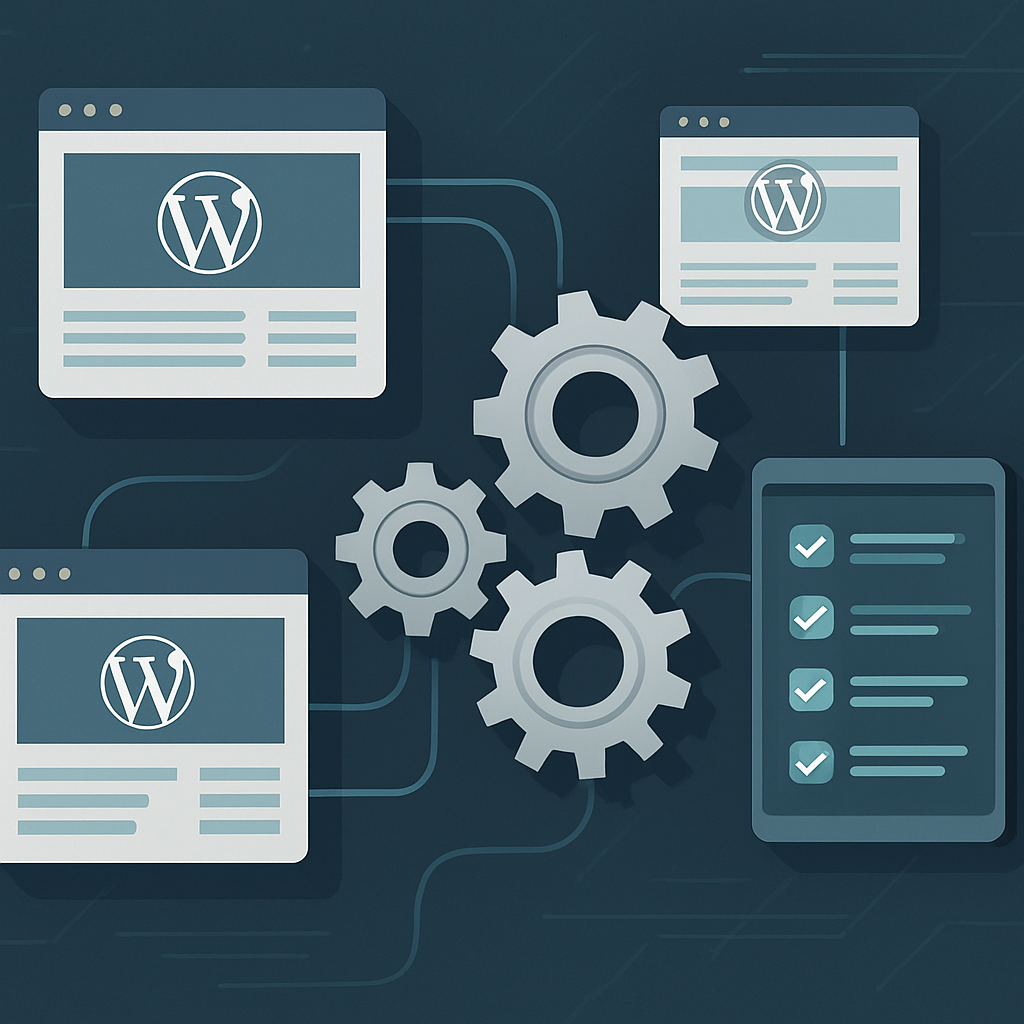
3. Implement a Lightweight Technical Checklist
To ensure that your automation is effective, consider the following checklist:
- Set up automatic updates for WordPress core, themes, and plugins.
- Schedule regular backups (preferably daily or weekly).
- Monitor uptime with tools like UptimeRobot or Pingdom.
- Run security scans using plugins like Wordfence or Sucuri.
- Optimize the database monthly with a plugin like WP-Optimize.
- Check for broken links regularly using tools like Broken Link Checker.
4. Monitor and Adjust Your Strategy
After implementing automation, it’s essential to monitor the results. Regularly review:
- Site performance metrics
- Backup success rates
- Security incidents
Adjust your automation strategy based on these insights to ensure continuous improvement.
FAQs
- What are the benefits of automating WordPress maintenance?
- Automating maintenance improves efficiency, consistency, security, and performance across all client sites.
- Can I automate updates for all plugins and themes?
- Yes, you can set up automatic updates for plugins and themes, but it’s advisable to monitor compatibility issues.
- What tools can help with WordPress maintenance automation?
- Tools like ManageWP, MainWP, UpdraftPlus, and Wordfence can streamline maintenance tasks.
- How often should I perform backups?
- Backups should be performed at least weekly, but daily backups are recommended for critical sites.
- Is it safe to automate all maintenance tasks?
- While many tasks can be automated, monitoring is essential to catch potential issues, especially with updates.
Conclusion
Automating WordPress maintenance for multiple client sites is not just a time-saver but a smart business move. By following the strategies outlined in this article and utilizing the checklist provided, you can enhance your workflow, maintain security, and optimize performance. Embrace automation, and you’ll find that managing client sites becomes a much more manageable endeavor.