





Content Summary
Maintaining multiple WordPress client sites can quickly become a cumbersome task, especially when each site requires regular updates, backups, security checks, and performance optimizations. Automating these maintenance tasks not only saves time but also ensures that your sites remain secure and efficient. In this article, we will explore effective strategies to automate WordPress maintenance across multiple client sites and present a before-and-after optimization scenario to illustrate the benefits.
Understanding the Need for Automation
As a senior WordPress developer, I have encountered various clients with different needs and challenges. Managing each site individually can lead to missed updates, potential security vulnerabilities, and inconsistent performance. By automating maintenance, we can:
- Reduce the time spent on repetitive tasks.
- Ensure timely updates and backups.
- Enhance security by applying patches and monitoring changes.
- Improve overall site performance and uptime.
Before and After Optimization Scenario
Let’s consider a scenario where a marketing agency manages ten different WordPress sites for various clients. Before implementing automation, the agency faced several issues:
- Manual updates took an average of 3 hours per site per month.
- Security audits were irregular, leading to potential threats.
- Backups were not consistently scheduled, risking data loss.
After implementing automation tools and strategies, the agency experienced the following improvements:
- Automated updates reduced maintenance time to 30 minutes per site per month.
- Regular security audits and monitoring were scheduled weekly.
- Automated backups ensured data was safely stored daily.
This transformation not only saved time but also enhanced client satisfaction and trust.
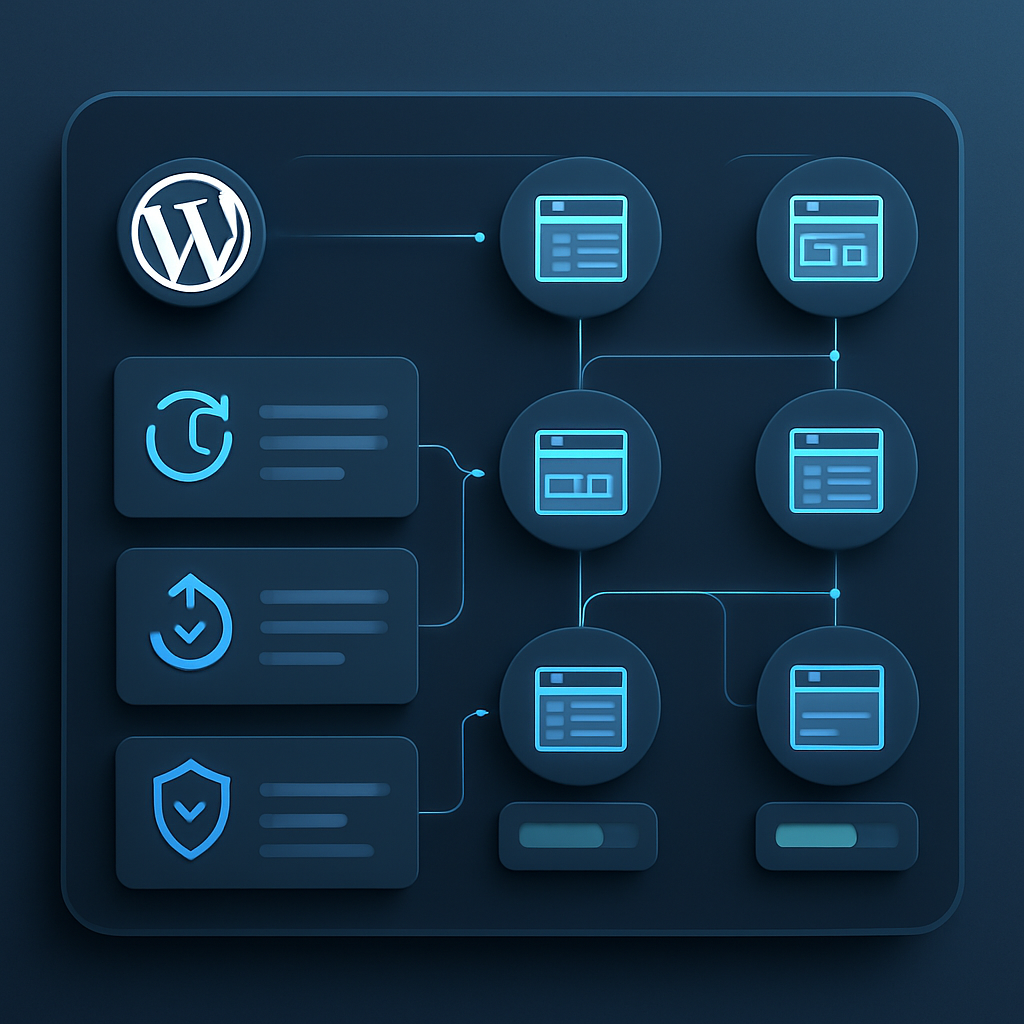
Strategies for Automating WordPress Maintenance
1. Utilize a Management Plugin
Plugins like ManageWP or MainWP allow you to manage multiple WordPress sites from a single dashboard. These tools offer features such as:
- One-click updates for core, themes, and plugins.
- Automated backups with cloud storage options.
- Security checks and performance monitoring.
2. Schedule Regular Backups
Regular backups are crucial for data recovery. Using plugins like UpdraftPlus or BackupBuddy, you can schedule automatic backups to a secure location. Consider the following:
- Choose a backup frequency that suits your site’s activity level.
- Store backups in multiple locations (e.g., Dropbox, Google Drive).
3. Implement Security Plugins
Security plugins like Wordfence or Sucuri can automate security checks, firewall settings, and malware scans. Key features include:
- Real-time threat detection and alerts.
- Scheduled scans to identify vulnerabilities.
- Automatic updates for security patches.
4. Monitor Performance
Using tools such as Google PageSpeed Insights or GTmetrix, you can automate performance monitoring to ensure your sites load efficiently. Important metrics to track include:
- Page load speed.
- Core Web Vitals.
- Server response times.
5. Utilize a Staging Environment
Before making updates, use a staging environment to safely test changes. Plugins like WP Staging allow you to clone sites for testing purposes, ensuring that updates do not disrupt live sites.
Potential Challenges and Considerations
While automation offers numerous benefits, there are challenges to consider:
- Initial Setup Time: Setting up automation tools may require time and a learning curve.
- Over-reliance on Automation: Regular checks are still necessary to ensure everything runs smoothly.
- Compatibility Issues: Some plugins may conflict with others; thorough testing is essential.
Conclusion
Automating WordPress maintenance across multiple client sites is a strategic move that enhances efficiency, security, and client satisfaction. By utilizing management plugins, scheduling backups, implementing security measures, and monitoring performance, you can significantly reduce manual workload and improve the overall health of your sites. The before-and-after scenario demonstrates that with the right automation strategies, you can achieve a streamlined workflow that benefits both you and your clients.
Frequently Asked Questions
- What is WordPress maintenance automation?
- WordPress maintenance automation refers to using tools and plugins to schedule and execute routine tasks such as updates, backups, and security checks without manual intervention.
- How can I automate backups for my WordPress site?
- You can use plugins like UpdraftPlus or BackupBuddy to schedule automatic backups at regular intervals and save them to secure locations like cloud storage.
- Are there any risks in automating WordPress maintenance?
- While automation reduces manual errors, there are risks such as over-reliance on automated tools, which may lead to neglect of manual checks and updates.
- What are the best plugins for managing multiple WordPress sites?
- Plugins like ManageWP and MainWP are popular choices for managing multiple sites from a single dashboard, offering features like one-click updates and performance monitoring.
- How often should I perform security checks on my WordPress sites?
- Regular security checks should be scheduled at least weekly, especially for sites that handle sensitive data or have frequent updates.