





Content Summary
As a seasoned WordPress developer, managing multiple client sites can often feel overwhelming, especially when it comes to maintenance tasks. Automating WordPress maintenance not only streamlines your workflow but also ensures that all your client sites remain secure, updated, and optimized. In this article, we will explore effective strategies for automating maintenance across multiple sites, common mistakes to avoid, and actionable next steps to enhance your efficiency.
Understanding the Importance of Automation in WordPress Maintenance
WordPress maintenance tasks can be tedious and time-consuming. From updating themes and plugins to monitoring security and performance, the responsibilities can pile up quickly. Automating these tasks allows you to focus on delivering value to your clients while ensuring that their sites run smoothly.
Benefits of Automating Maintenance
- Time Efficiency: Reduce the time spent on repetitive tasks.
- Consistency: Ensure uniformity in updates and backups across all client sites.
- Enhanced Security: Regular updates minimize vulnerabilities.
- Improved Performance: Automated optimizations can lead to better site speed and user experience.
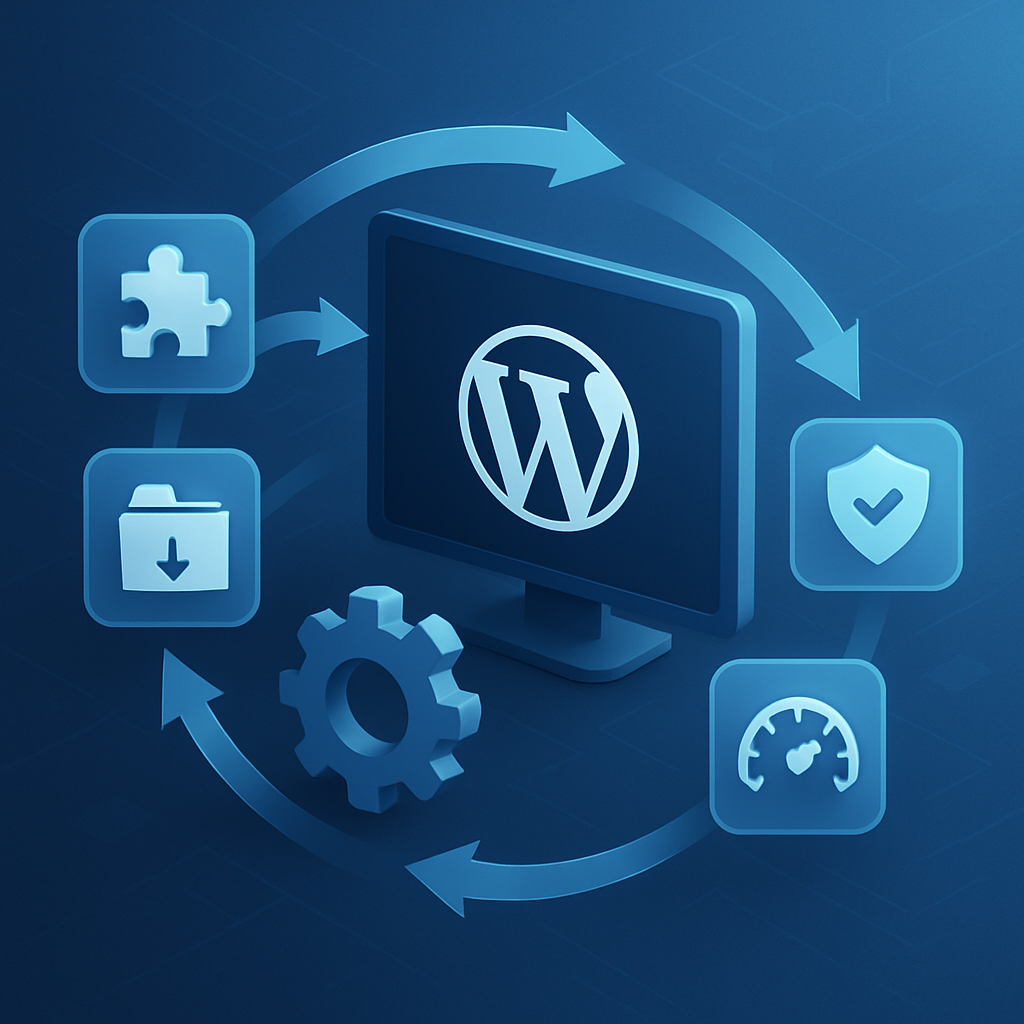
Key Areas to Automate in WordPress Maintenance
When setting up automation for WordPress maintenance, consider focusing on the following key areas:
1. Updates
Automate core, theme, and plugin updates to ensure all components of the sites are current, minimizing security risks and compatibility issues. Use tools like WP-CLI or plugins like WP AutoUpdate.
2. Backups
Implement automated backup solutions that regularly back up your client sites. This protects against data loss and allows for quick restoration in case of an emergency. Consider using plugins like UpdraftPlus or BackWPup.
3. Security Monitoring
Automate security scans to check for vulnerabilities and malicious code. Tools like WP Security Scan can be scheduled to run at regular intervals, providing peace of mind.
4. Performance Optimization
Set up automated performance tests to monitor site speed and optimization. Use services like GTmetrix or Pingdom to track performance metrics.
Avoiding Common Mistakes in Automation
While automation can significantly enhance your workflow, there are common pitfalls to be aware of:
1. Over-Automation
While automation is beneficial, overdoing it can lead to problems. For instance, automatically updating plugins without testing can break site functionality. Always ensure you have a staging environment to test updates first.
2. Ignoring Compatibility Issues
Different plugins and themes can conflict with each other. Regularly check compatibility and avoid automating updates for plugins that are known to cause issues.
3. Neglecting Manual Checks
Automation should complement, not replace, manual checks. Schedule regular audits of your client sites to ensure everything is functioning as expected.
Next Steps for Effective Automation
To implement a successful automation strategy for your WordPress maintenance, follow these steps:
- Assess Your Needs: Identify which maintenance tasks are most time-consuming and prioritize automating them.
- Select Tools: Choose reliable plugins and tools that fit your automation needs and ensure they are regularly updated.
- Test in Staging: Always test automation settings in a staging environment before applying them to live sites.
- Monitor and Adjust: Continuously monitor the performance of automated tasks and make adjustments as needed to improve efficiency.
Frequently Asked Questions
- What plugins are best for automating WordPress maintenance?
- Some popular plugins include UpdraftPlus for backups, WP AutoUpdate for updates, and Sucuri for security.
- Can I automate backups for multiple sites?
- Yes, many backup plugins allow you to manage multiple sites and automate backups efficiently.
- How often should I schedule automated maintenance tasks?
- This depends on the site traffic and updates. A weekly schedule for most tasks is often sufficient, but critical sites may require daily checks.
- Is it safe to automate updates?
- While automating updates is generally safe, it’s important to test updates on a staging site first to prevent issues on live sites.
- What should I do if an automated task fails?
- Regular monitoring is crucial. If a task fails, troubleshoot the issue, restore from backup if necessary, and adjust your automation settings.
Conclusion
Automating WordPress maintenance for multiple client sites can drastically improve your efficiency and provide peace of mind. By understanding the key areas to focus on, avoiding common pitfalls, and taking strategic next steps, you can ensure that your clients’ sites remain secure, updated, and optimized without overwhelming yourself. Embrace automation, but do so thoughtfully, and you’ll see the benefits in your workflow.