
If you’ve ever wondered why some WordPress sites load instantly while others drag their feet, it usually comes down to one core idea: the right use of cached data. I’ve seen this firsthand throughout my daily experience maintaining and improving websites for clients with André Luiz Abdalla. But caching isn’t just a buzzword. It’s a real game-changer for website speed and dependability. Let’s break down what caching means for your WordPress site, how it works at each layer, and the best methods for managing it.
What is cache and why do WordPress sites use it?
Caching is the process of storing a copy of website data temporarily to improve load times and reduce repeated work for the server. When you first access a WordPress page, it is usually built by pulling content from the database, processing it with PHP, and rendering it as HTML for your browser. That’s a lot of moving pieces. If every single visitor triggered this entire process, your hosting resources could quickly become overwhelmed, especially during high-traffic moments.
With cached responses in place, WordPress delivers static copies of pages straight from memory, disk, or the user’s device. As a result, your site serves the same content far faster and with less server strain. It’s all about providing a better visitor experience and, as a bonus, improving your ranking signals in search results, a connection often discussed in WordPress performance resources.
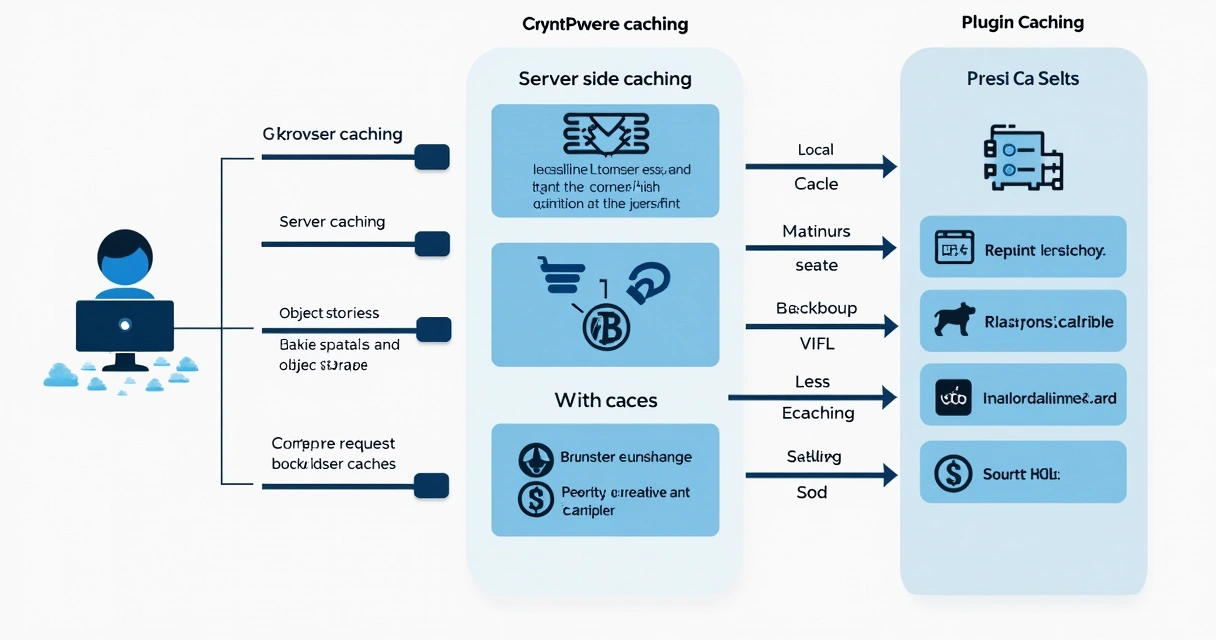
The three main levels: browser, server, and plugin-based caching
In site development and support, I routinely explain to clients that there isn’t just one “cache.” There are three major caches to think about: browser, server, and WordPress plugin-based.
Browser cache
A browser cache stores local copies of certain site resources (stylesheets, scripts, images) on your visitor’s device after their first visit.So when they come back to your website, their browser doesn’t have to download the same file twice. This can lead to immediate reductions in repeat load times for visitors.
Server-side caching
On the server side, there are options like object caches, opcode storage, or static HTML saving, all of which aim to deliver responses with lightning speed. When a server detects that it’s already generated a page for a given URL, it can save and hand back that HTML directly, skipping costly database requests.
Plugin-level caching in WordPress
For WordPress users, plugins make things even easier. WordPress cache plugins can create static versions of your most-trafficked pages, control when and what to save, and manage cache expiration rules. Each plugin may use different approaches—some create page-level snapshots, others rely on object data, and some focus on database results.
 Why proper cache management matters for speed and reliability
The benefits go well beyond simply “going faster.” Properly configured caches bring reliable performance under heavy load. They reduce hosting costs, and they buffer against temporary spikes in demand. Managing your cache isn’t just about speed; it also means visitors see a stable site, whether they’re the first or thousandth user of the day.
There’s proof that smart caching makes a difference. Research like the Purdue University dissertation on memory performance demonstrates how different cache strategies at each layer can maximize throughput, even under large numbers of requests.
What surprises many of my clients is that modern search engines notice these improvements. Page speed is a ranking signal, so a well-cached site can help with organic search and user satisfaction all at once. If you’re interested in the interplay of performance and search, I always recommend the resources at my SEO section.
How browser, server, and plugin caches interact
In practice, these three caches can either complement or conflict with one another. For the best experience, it helps to make sure they’re aligned:
- Browser cache: Controlled with HTTP headers. Make sure you request browsers to save static assets for a set period.
- Server-side storage: Choose which types (object, page, opcode) to implement based on your hosting setup and site size.
- Plugins: Set these to respect your server and browser cache policies so that no layer causes outdated content to linger.
According to University of California, Berkeley technical research, sharing data between caches must be thought out to reduce redundancy and ensure each cache works efficiently with the others, leading to higher site performance.
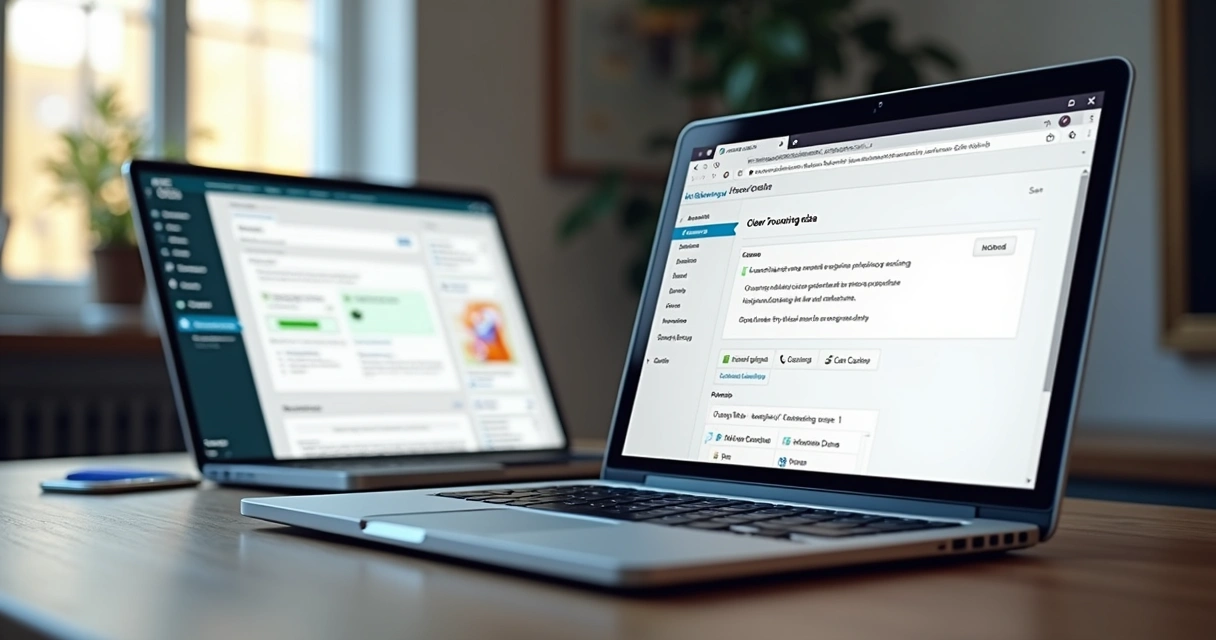
Step-by-step: Clearing WordPress and browser cache
Sometimes you must clear your caches: after updates, new posts, site changes, or if users report seeing outdated content. I guide WordPress users to do this carefully to avoid accidental data loss.
How to clear your WordPress cache:
- Open your site admin dashboard.
- Find the caching plugin settings—different plugins may label this as ‘Clear Cache’, ‘Purge All’, or ‘Delete All Cache’.
- Click to clear. Always refresh your site and double-check your pages to ensure display problems are gone.
For certain hosting solutions, there may also be server-level buttons or menus—never overlook these if you’re troubleshooting a stubborn problem.
How to clear browser cache for a website:
- Go to your browser’s settings or preferences menu.
- Locate the privacy or history section.
- Select “Clear browsing data” and choose to remove static files like cached images and site files. Refresh your site page when done to check changes.
 Some popular WordPress cache plugins and their main features
While there are many plugins in this space, here are common features found across the leading WordPress cache tools:
- Page caching—saves a static version of web pages for fast delivery
- Minification—reduces the size of CSS, JavaScript, and HTML files
- Browser caching—sets optimal rules for how users save assets locally
- Preloading—triggers pages to be cached before they are even requested
- Database cleanup and cache storage controls
- Mobile support, user agent exclusions, and cache versioning/expiration
If you’d like to see cache management in real projects, you might want to take a look at an example post about WordPress maintenance and a case study of plugin integrations.
Dealing with outdated content and caching problems
Even the best cache can sometimes cause headaches: showing outdated data, unstyled pages, or intermittent errors. In my experience, most of these issues stem from conflicting policies or failures to update caches when content changes.
- If a visitor sees “old” pages, it usually signals browser or static page caching isn’t updating as intended.
- Broken layouts often point to minification/kombined asset caching—try resetting minified files and clearing browser storage.
- Form errors or user-specific display issues suggest cache is storing personalized information—set up “don’t cache for logged-in users” rules.
When troubleshooting, I recommend re-clearing the plugin, browser, and server caches in turn, and confirming the issue on a private/incognito browser window. These steps handle the most common cases, as also studied in UC Berkeley’s analyses of cache evaluation methods.
Tips for safe cache versioning, storage, and best practices
From years managing WordPress solutions, here are my guidelines for reliable caching:
- Set a clear cache expiration policy: pages that rarely change can have longer limits; news or dynamic content should have shorter ones.
- Use cache “busting” techniques (like versioning file names) after big asset or style changes.
- Monitor disk or RAM usage: large content sites might fill up cache storage and slow down. Clean outdated entries regularly.
- Always check security plugins and privacy settings to ensure you’re not storing or displaying sensitive user-specific data.
If you’re dealing with multiple clients or large projects, a WordPress specialist can help build a caching plan that fits you. That’s one of my main focuses at André Luiz Abdalla—to ensure businesses get the fastest and safest setups possible. Find out more in the WordPress strategies section.
Conclusion
Caching is more than a single setting; it’s the backbone of fast, stable WordPress sites. By understanding and managing your caching layers—browser, server, plugin—you boost site performance, reliability, and search presence at once. If you want a site that stands out for speed and clarity, you need tailored strategies that fit your needs and visitors. At André Luiz Abdalla, that’s exactly what I help deliver.
Get in touch with me today to create a site that’s not only quick, but rock-solid and secure—built around your goals and your audience.
FAQ: Common questions about cache in WordPress
What is caching in WordPress?
Caching in WordPress refers to the process of temporarily saving web content (like HTML, database queries, or images) so it can be served quickly to users on future visits, rather than regenerated from scratch every time.
How does cache improve site speed?
When a cache is active, WordPress or the browser can deliver previously stored copies from memory or disk, reducing the need to process PHP, query the database, and rebuild the page. This means most visitors see your site much faster with less wait and less server workload.
How to clear cache in WordPress?
Go to your WordPress dashboard, open the cache plugin’s settings area, and use the “Clear Cache” or “Purge All” button. Some hosting platforms offer additional server cache controls. Refresh your website to confirm changes have been made.
What are the best WordPress caching plugins?
Several quality caching plugins are available. Common features include page and object caching, minification, preloading, mobile support, and custom rules for advanced needs. Each plugin may offer different settings, so choose one that fits your workflow and hosting environment.
Is it necessary to use a cache plugin?
For most WordPress websites, a caching plugin is recommended because it delivers faster pages and handles high-traffic scenarios more gracefully, especially if your hosting does not provide server-side caching by default.