





Content Summary
Managing multiple WordPress client sites can quickly become overwhelming, especially when it comes to routine maintenance tasks. Automating these processes not only saves time but also enhances security, performance, and reliability across all sites. In this article, we’ll explore effective strategies for automating WordPress maintenance and provide a lightweight technical checklist to help streamline your workflow.
Understanding the Importance of Automation in WordPress Maintenance
WordPress maintenance involves a series of tasks that are crucial for the health of your sites. These include updates, backups, security checks, and performance optimizations. Automating these tasks can lead to:
- Increased Efficiency: Automation reduces the time spent manually performing repetitive tasks.
- Consistency: Ensures that every site receives the same level of attention and care.
- Reduced Errors: Minimizes the risk of human errors during updates or backups.
- Scalability: Easier to manage a growing portfolio of client sites.
Key Automation Tools and Techniques
There are several tools and techniques you can utilize to automate WordPress maintenance effectively:
1. Management Plugins
WordPress management plugins can help you handle multiple sites from a single dashboard. Tools like ManageWP or MainWP offer features like automated backups, updates, and performance checks.
2. Automated Backups
Utilize plugins like UpdraftPlus or BackWPup to schedule automatic backups. Ensure backups are stored securely offsite, such as on cloud services like Google Drive or Dropbox.
3. Security Automation
Security plugins like Wordfence or Sucuri can automate security checks, firewall settings, and malware scans.
4. Performance Monitoring
Use tools such as GTmetrix or WP Engine to set up automated performance monitoring. These tools can alert you to issues that need attention.
5. Cron Jobs
For developers, setting up cron jobs can automate custom tasks effectively. This might include cleaning up your database, optimizing performance, or running specific scripts at regular intervals.
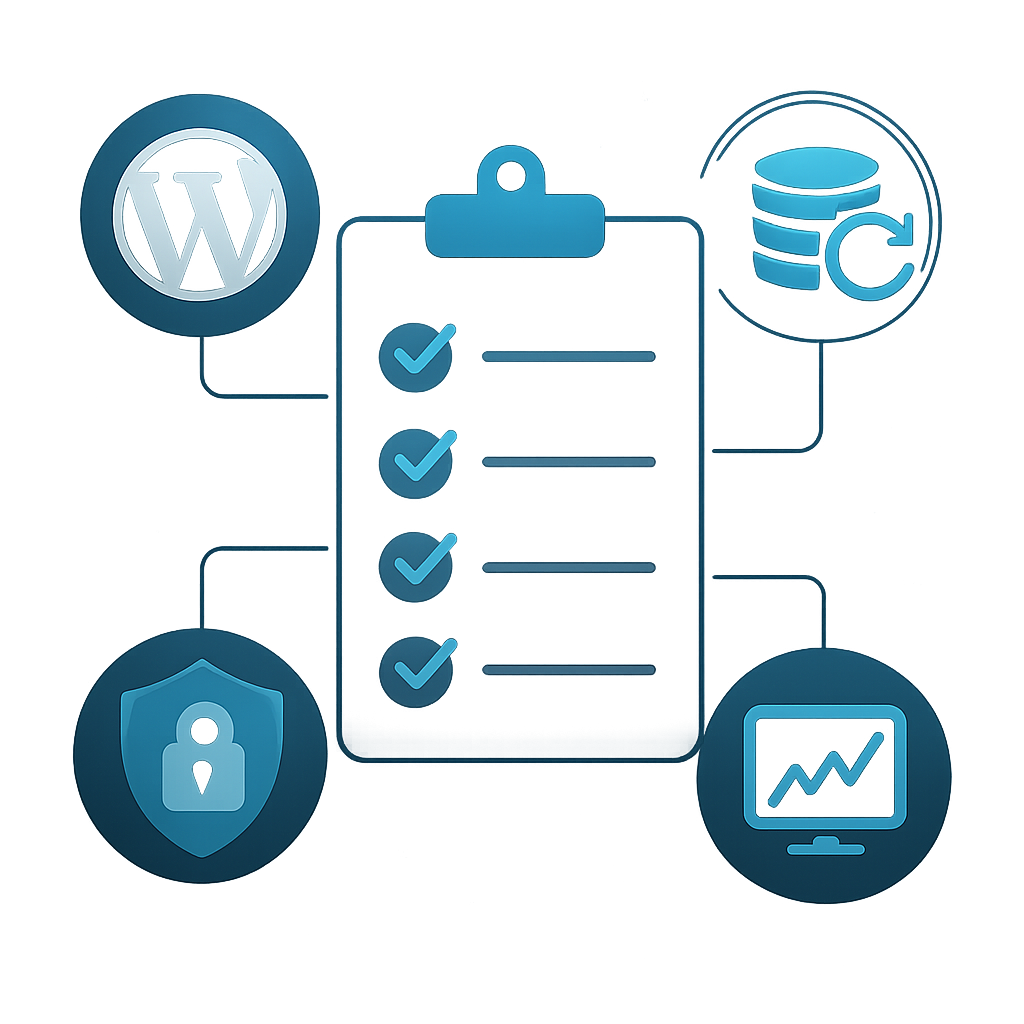
Technical Checklist for Automating WordPress Maintenance
Here’s a lightweight checklist to guide your automation efforts:
- Install and configure a management plugin.
- Set up automated backups with a reliable plugin.
- Schedule regular updates for themes and plugins.
- Implement a security plugin and configure automatic scans.
- Set up automated performance monitoring.
- Use cron jobs for custom automation tasks.
- Regularly review your automation settings and adjust as necessary.
Frequently Asked Questions
- What is the best way to automate WordPress updates?
- Utilize management plugins like ManageWP or MainWP, which allow you to enable automatic updates for all installed plugins and themes.
- How often should I back up my WordPress site?
- It’s advisable to back up your site at least once a week, or more frequently if you’re making regular updates or changes.
- Can I automate security checks?
- Yes, security plugins like Wordfence and Sucuri can automate security scans and notify you of any threats.
- What are cron jobs and how do they help?
- Cron jobs are scheduled tasks that can automate scripts and maintenance processes on your server, such as database optimization.
- Is it safe to automate WordPress maintenance?
- Yes, when done correctly using reputable plugins, automation can enhance your site’s security and performance while reducing your workload.
Conclusion
Automating WordPress maintenance for multiple client sites is not only efficient but essential for providing consistent service. By implementing the above strategies and utilizing the checklist, you can ensure that all your sites remain secure, updated, and optimized without overwhelming your schedule. Start small, gradually integrate automation, and watch your workload diminish while the quality of your service improves.