





Content Summary
Understanding the ‘404 Not Found’ Error
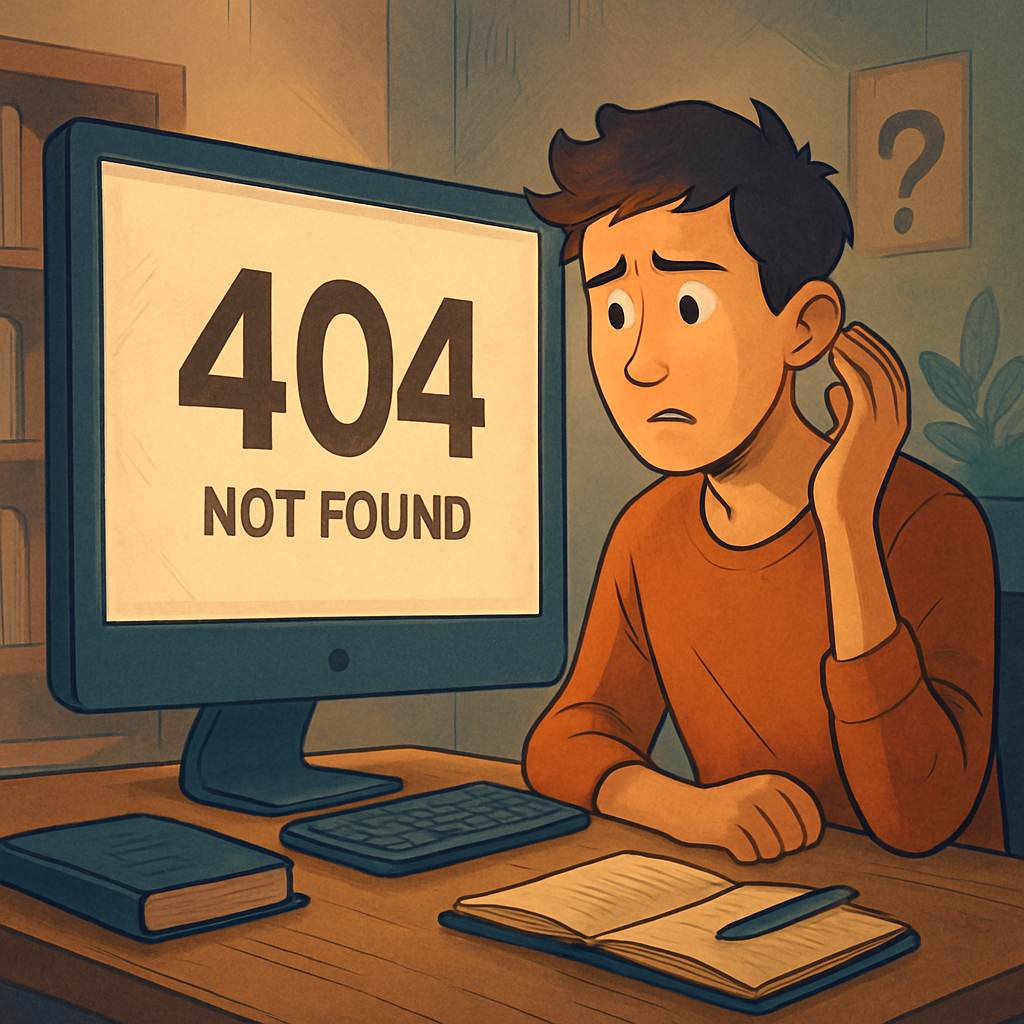
The ‘404 Not Found’ error is one of the most common issues faced by WordPress users. This error occurs when a user tries to access a page that doesn’t exist on your site. It can happen due to various reasons, including broken links, deleted pages, or incorrect URLs. In this article, we will explore the causes of this error and provide step-by-step solutions to resolve it.
Common Causes of the ‘404 Not Found’ Error
- Incorrect URL: The URL entered may be misspelled or outdated.
- Deleted or Moved Content: The page may have been deleted or moved to a different URL without proper redirection.
- Permalink Structure Changes: Changes in the permalink settings can lead to this error if not updated correctly.
- Plugin Conflicts: Some plugins may interfere with URL handling, causing broken links.
How to Fix the ‘404 Not Found’ Error
Step 1: Check the URL
Ensure that the URL you are trying to access is correct. Look for any typos or unnecessary characters. If you are the site owner, try accessing the URL directly in your browser.
Step 2: Restore Deleted Content
If the page was deleted, check your WordPress dashboard. Go to Pages or Posts and see if the content is in the trash. If it is, restore it.
Step 3: Reset Permalinks
Resetting your permalink structure can often resolve the issue. Follow these steps:
- Log in to your WordPress admin panel.
- Navigate to Settings > Permalinks.
- Select your preferred permalink structure.
- Click Save Changes (even if you don’t change anything).
Step 4: Deactivate Plugins
Conflicting plugins can cause the ‘404 Not Found’ error. To identify the culprit:
- Go to Plugins in the WordPress dashboard.
- Deactivate all plugins.
- Check if the error persists. If it’s resolved, reactivate each plugin one by one to find the problematic one.
Step 5: Check for Theme Issues
Sometimes, the active theme can cause conflicts. Switch to a default theme like Twenty Twenty-One to see if the error disappears. If it does, the issue lies within your theme.
Step 6: Create a Custom 404 Page
While this doesn’t fix the error, creating a custom 404 page improves user experience. You can guide users back to functional pages or provide a search option. Use a plugin like 404page to create a custom page easily.
Conclusion
The ‘404 Not Found’ error can be frustrating, but it’s usually easy to fix. By following the steps outlined above, you can identify the cause and implement the necessary solutions. Regularly check your site for broken links and maintain your content to enhance user experience.