






Website owners frequently worry about downtime, crashes, or hackers. In our experience providing WordPress Development Services for agencies and businesses, we know these concerns are common for anyone managing several or even a single high-traffic site. A reliable way to reduce stress and prevent disasters is by automating your WordPress updates and backups. Here, we present a practical, step-by-step path to creating a safer, faster, and more stable WordPress site—so your business or agency can focus on growth instead of firefighting.
Why automate updates and backups?
Manual updates and backups are time-consuming, easy to overlook, and prone to human mistakes. According to ISACA reports, human error is a key factor in data incidents. Automating these tasks limits risk. It ensures that your WordPress site stays secure, recoverable, and runs its best—even if you forget or get busy. At André’s WordPress Development Services, we have seen agencies save hours each week and avoid costly disasters simply by automating these two areas.
Automation brings peace of mind.
Now, let’s break down the process into the 12 steps that matter most.
Step 1: Make a full backup before you start
Before changing anything on your WordPress installation, always make a fresh backup. If something goes wrong during setup, you can roll back. This backup should include your database, uploads, plugins, and theme files. There are backup plugins available, but at our company, we always favor a complete, off-site backup for this task.
Step 2: Choose the right backup tool
Tools make a big difference. Some popular solutions like UpdraftPlus, BackupBuddy, and Jetpack Backups are known on the market, but we set ourselves apart by helping clients customize backup schedules and choosing the backup solution that truly fits their scale and workflow. Look for features like scheduled automatic backups, off-site storage (Google Drive, Dropbox, S3), and quick restore options.
Step 3: Configure scheduled backups
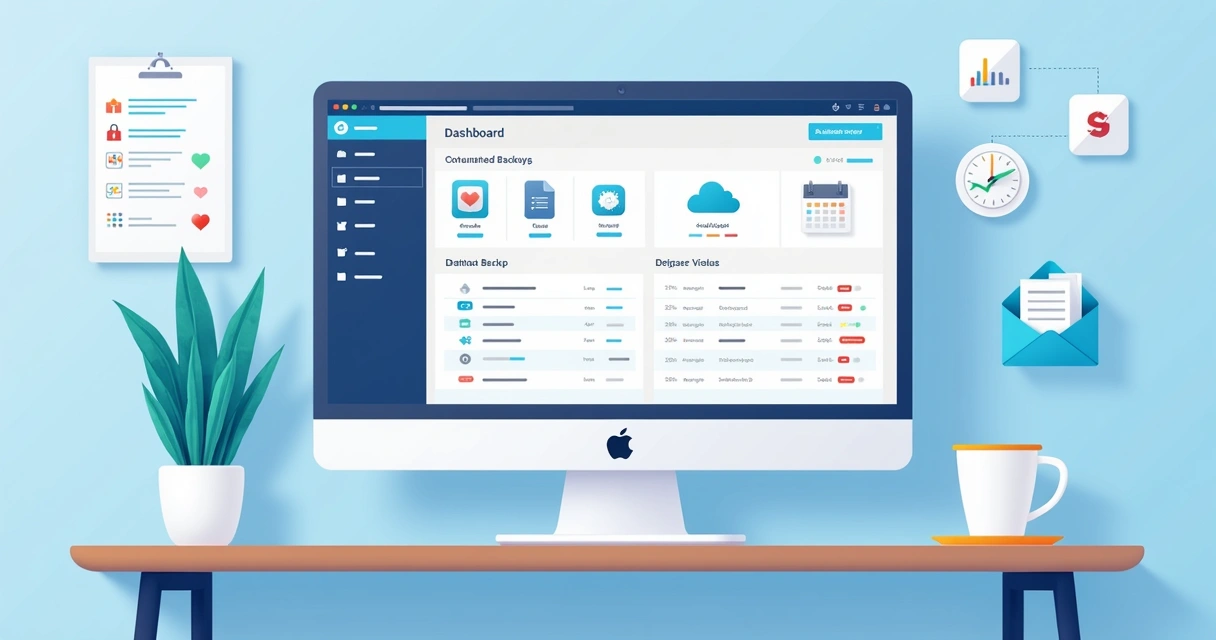
Once your tool is active, set automatic backup intervals for your WordPress database and files. We recommend daily backups for business and agency sites, while some blogs may get by with weekly backups. Set it and forget it—but make sure it’s saving where you want: outside your web server.
Step 4: Test your backups
Many users automate backups, then never test recovery—until it’s too late. We urge testing your restore process on a staging environment. This step may feel slow, but confirms your safety net works when you need it. Always test backups after configuring or changing backup solutions, not just once.
Step 5: Set up automatic WordPress core updates
Since WordPress version 5.6, enabling automatic core updates is easier. For most agencies and business sites, we advise automatic minor updates for security, but sometimes manual review for major version jumps. In our work, we strike a balance, ensuring security fixes are never missed, but major updates are still reviewed for compatibility.
Step 6: Automate plugin and theme updates
Keeping plugins and themes up-to-date protects against vulnerabilities and incompatibility. Many agencies hesitate to auto-update plugins, worried about breaking their site. That’s why, at André’s WordPress Development Services, we often set up plugin updates with safe rollback options. In WordPress 5.5 and newer, you can enable auto-updates for both plugins and themes directly from the admin panel.
Step 7: Use safe staging environments
We believe no automated update should go to your live website before vetting. Staging environments allow safe testing of updates and restores. They’re especially valuable when working with custom plugins or complex client sites. For multi-site environments or busy agency portfolios, this is a must-have step. For a detailed guide, you can read about WordPress migration and staging on our resources.
Step 8: Select off-site storage for backups
Storing backups only on your hosting server is risky—if the server fails, you lose the live site and the backups together. Choose a cloud solution or remote FTP/SFTP server for extra protection. Our setup typically includes at least two secure off-site locations for high-reliability businesses and agencies.

Step 9: Keep notification alerts active
Even automated systems need oversight. Enable email or webhook notifications for backup status and WordPress updates. This means, if a backup fails or an update doesn’t install, you’ll know right away and can act before issues grow into big problems. Many businesses we’ve worked with use custom Slack or Teams alerts for their dev teams as well.
Step 10: Limit how many backups you keep
Backups are good—junk files are not. Set up your backup tool to delete older backups past a certain time frame, such as keeping the last 30 days’ worth. This keeps storage costs down and makes finding the backup you want much faster. Scheduling old backups for deletion maintains order and saves resources for your business.
Step 11: Review security after each update
Every update or plugin change can open gaps. Connect your automated update strategy with regular security scans. We recommend automated scanning tools in addition to manual reviews. If you want more details on securing your setup, our dedicated security and maintenance solutions are a reliable reference tailored for agencies and growing businesses.
Step 12: Document your process and review regularly
Automation is a set-it-and-review process, not set-it-and-ignore. Write down your schedule, tools, recovery contacts, and update processes so your team—or your clients—know what’s running and where to look during questions or emergencies. For agencies managing multiple sites, centralized documentation stops confusion before it starts.
Consistency in process keeps surprises away.
Special tips for agencies and multi-site managers
Managing updates and backups across several WordPress installations multiplies complexity. We built our WordPress Development Services with agencies in mind. Ongoing support and maintenance mean your clients and partners are protected and informed—without your team burning out. Unlike some managed WordPress hosting competitors, we provide transparent, customized solutions and are happy to adapt to your stack, not force you into ours.
Integrating custom solutions and plugin automation
Sometimes the default isn’t enough. Business sites often run custom code or special plugins. Automating updates and backups here can demand special attention. Tools and processes must be tested with custom code in mind—an area where our developers have strong experience. If you want to learn more about building and managing custom plugins with automation tasks considered, see our custom plugin guide.
Checklist to make your automation reliable
- Set reminders to review update and backup reports every week
- Test restoring a backup at least once every quarter
- Keep backup contact info available for your team
- Validate auto-update logs after every major WordPress release
Following a structured, repeatable routine minimizes business risk and gives your team confidence in your WordPress solutions.
Take the next step in your WordPress strategy
Automated updates and backups go beyond just convenience—they protect your brand, revenue, and workflows from the unknown. The right approach isn’t about just checking boxes, but tailoring automation to how your business or agency works best. If you want ongoing peace of mind without compromise, explore our maintenance and security package—and take the first step to a safer, fully automated WordPress site that grows as you do.