
Gutenberg, with its block-based creation process, changed how I approach websites on WordPress. Every time I open a new page or post, I sense the difference in flexibility and visual feedback it gives. Over the years, working alongside agencies and business owners like those who come to my project, André Luiz Abdalla, I’ve seen how this editor is quietly empowering teams, improving their workflows, and letting them adapt sites without huge technical lifts.
Introduction: A new way to create on WordPress
When I first dipped into site-building, WordPress was already a huge player. Its classic editor, based on TinyMCE, resembled a simple word processor. That environment worked, but it felt restrictive when I wanted layouts with real personality. When the block editor arrived, everything changed.
The core idea is that every page element—be it a paragraph, image, video, or gallery—becomes a block you can move, customize, and shape as needed. This system, introduced in WordPress 5 as highlighted by the University of California, Irvine, replaced the old writing pad and made design visual, modular, and far more open to all types of users.
Walking through the transition with clients, I see how agencies in particular appreciate the way it helps serve multiple customers without constantly recoding things from scratch. Enterprises love the ability to keep branding tight, yet let teams whip up pages fast. With the proper care—continuous maintenance, SEO tweaks, creative block development, and robust support—blocks can transform even a basic website into a polished, adaptable digital presence.
Blocks give sites a framework that’s easy to update, expand, and tailor to new needs.
Throughout this article, I’ll share hard-won advice from years of WordPress work, practical steps to make layouts flexible, and some tips specifically for those serving others—agencies or professionals juggling several projects at once. I also reference studies from City University of New York that explain the editor’s modular approach, and how it improves usability.
What is the Gutenberg editor?
The block editor, often called Gutenberg since its launch, is a content creation platform inside WordPress. It was first made public with WordPress 5.0. It replaces the old-style Classic Editor with a system that treats every content part as its own, movable, and customizable block.
As the University of California, Irvine explains, the main purpose of this change is to make it easier for anyone—designer or not—to create pages with mixed media, custom layouts, and new functionality. You’re building with Lego-like pieces rather than wrestling with crowded text boxes and hidden shortcodes.
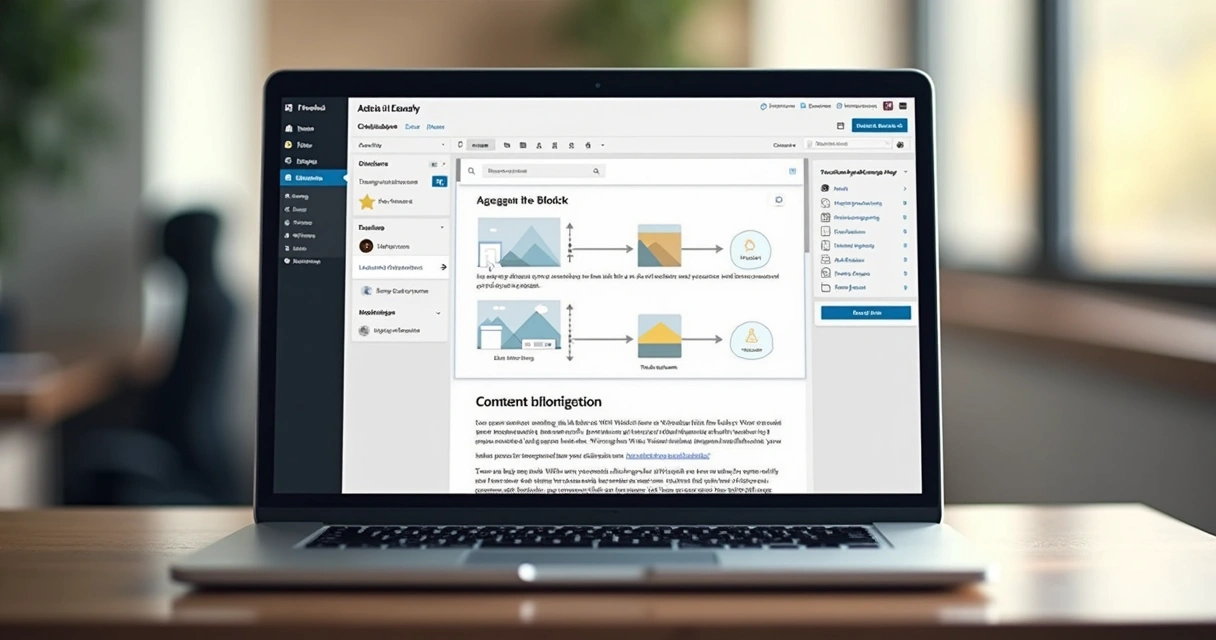 With a block-driven approach, one can add, remove, or change the placement of sections like playlists, columns, and buttons—all without code.
In my own projects, I’ve seen this feature alone save agencies hours when building custom landing pages or recreating layouts for new offerings. It brings clarity, especially for non-technical users who previously dreaded anything beyond standard posts.
The classic vs. block editor: Major differences
Understanding the distinction between the two is key, and it comes up often in my consulting for agencies and site managers.
- The Classic Editor is much like a plain word processor. There’s a toolbar, room for basic HTML, and shortcodes for custom work. But any layout beyond simple text-and-images requires plugins or digging into code.
- The Block Editor breaks content into chunks or “blocks.” Each block—heading, image, paragraph, list, embed, etc.—can be added independently, moved around, or styled separately.
- Custom layouts, like columns, are built visually. Adding complexity doesn’t mean pasting shortcode or CSS. You just select blocks and arrange.
- There is direct feedback as you add or change content: what you see is very close to what your site visitors will see.
- Blocks can hold settings (such as button color, font size, image crop), which you tweak with sliders and dropdowns—coding is optional.
This difference helps make page building more accessible and repeatable, two qualities essential for agencies with large portfolios or businesses maintaining a lively marketing calendar.
How Gutenberg blocks changed the page-building game
I have always been fascinated by modular design. The introduction of block-based creation in WordPress didn’t just save time—it pushed better design habits onto everyone, from casual bloggers to pros developing entire themes.
Using the block paradigm, every part of a page is a reusable and customizable object. The core blocks cover the basics (text, media, embeds), but you can also install or code specialized blocks for your project’s needs.
For example, I once worked on a multi-client campaign site that needed a testimonial carousel, contact icons, and product features all on the same landing page. With the block editor, my team built each as its own block. The client could mix and match these blocks to spin up new campaigns in minutes, without breaking brand guidelines.
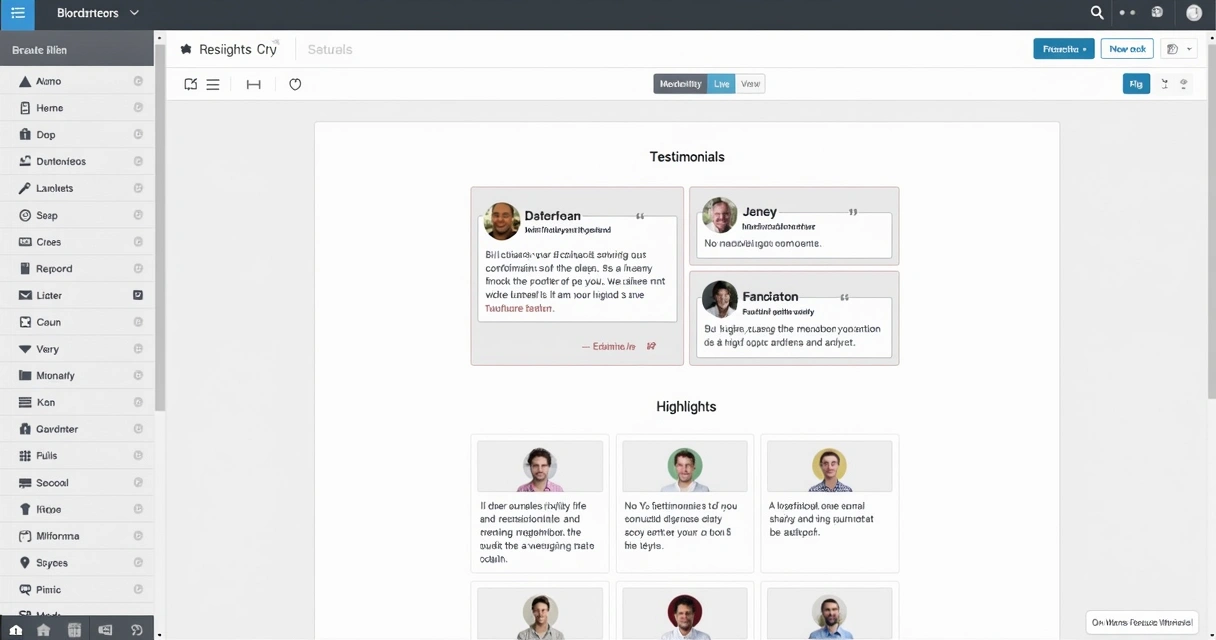 Recent studies at City University of New York document how this “block approach” is now the default on major WordPress platforms, noting the real benefits: a clearer, drag-and-drop experience, and faster learning for new team members.
Structure, organization, and speed arrive as soon as blocks enter the workflow.
Types of blocks you will use often
You will find, as I did, that certain blocks become your main tools, while others help satisfy edge cases or give sites a personal feel.
- Paragraph: The workhorse for text content.
- Heading: For dividing sections and improving readability.
- Image: Single or gallery images, with captions and alt text.
- List: Both numbered and bulleted for steps, features, and more.
- Columns: Allow you to arrange content side-by-side, creating modern, multi-panel layouts.
- Quote: For highlighting insights or testimonials.
- Button: Customizable for calls to action, with links and color choices.
- Video/Audio/Embed: To showcase content from YouTube, Vimeo, SoundCloud, or social networks.
Additional blocks—like cover images, spacers, separators, social icons—round out the toolkit. These are just the start, since developers can craft custom blocks for unique clients or campaigns.
First steps: Laying out a flexible page with the block editor
When I’m onboarding someone new, I start with a few steps that help build confidence as well as clarity.
Open the editor for a page or post, and you’ll see a clean white canvas with a blinking cursor and a “+” to add your first block. From there, you can craft layouts as simple or as involved as you wish.
Step 1: Mapping content sections
Before building, I sketch out what the full page should convey. What main areas are needed? Hero section, features, testimonials, pricing tables, FAQs, and strong calls to action. This mental “blueprint” becomes a guide for blocks.
Step 2: Adding core blocks and arranging them
I always add the major blocks—header with logo and menu, the hero with a heading and button, then columns or a group for features. Each area fits into its own block or nested set of blocks. For example, the columns block lets you present services side by side, while the group block acts as a wrapper for multiple elements, letting you move a whole content section as one object.
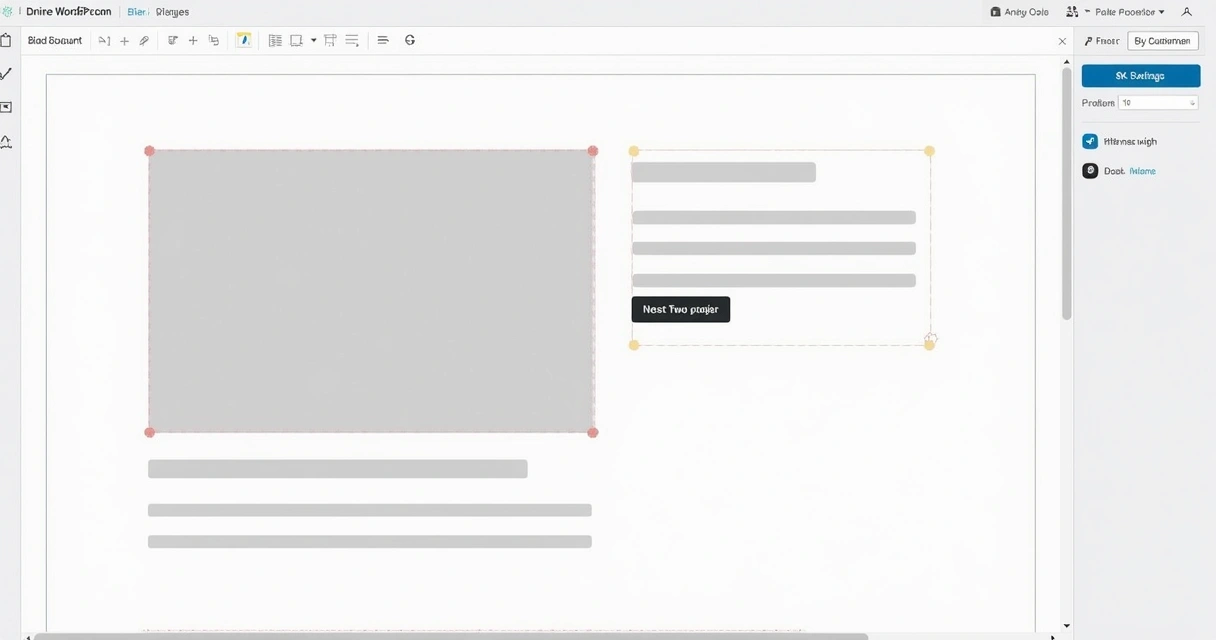 Step 3: Adding media and rich content
After structure comes visual content. I drag in banner images using the image or cover block, or upload a product video through the appropriate block. As each is added, I can move it, change alignment, or adjust how text flows around it. Embedding a YouTube demo or customer quote is now a matter of a few clicks.
It’s simple to adjust block settings for background color, padding, border, and other visual elements, all from the sidebar. This is how non-designers can still present brand consistency and compelling layouts.
Step 4: Reviewing on mobile and tablet
Responsive design is non-negotiable. I preview layouts on different screens. Many blocks have their own responsive controls—column stacking, mobile font size, or hiding blocks on certain devices. With just a few tweaks, I ensure every section looks sharp on any screen.
If you need some hands-on examples, sites like my WordPress category offer step-by-step guides and deep dives into building projects that serve multiple business goals.
Reusable blocks: Speed for agencies and professionals
Whether you manage a single intricate website or dozens of client projects, certain building patterns keep repeating. I constantly run into requests to replicate testimonials, feature lists, or contact bars—not just once, but everywhere. The block editor understands this challenge.
Reusable blocks are the answer for repeated content, from FAQs to branded calls-to-action.
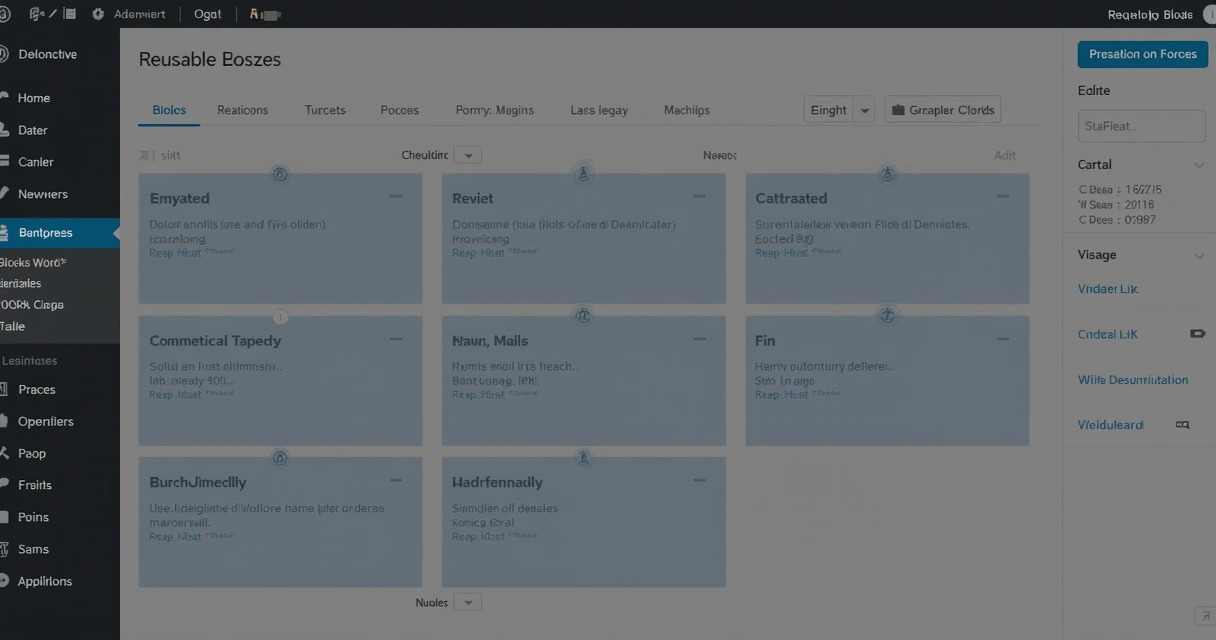
You can right-click any block (or a set of nested blocks) and save it as a reusable block. This block can then appear on other pages, and if you update it once, all instances reflect the change. It’s like having synced templates but for any bit of content you repeat regularly.
How I work with reusable blocks every day
When managing agency projects, I build “content kits” of reusable blocks—custom buttons, branded testimonials, lead capture forms. Team members can drop these into projects, edit the main version if brand language changes, and trust that the new copy will appear everywhere. For clients with multiple products, I prepare reusable blocks for product details and guarantees, reducing errors and expediting turnarounds.
Best practices for reusable blocks
- Naming clearly: Use descriptive names so team and clients know what each block does (“FAQ Section – Web Hosting,” not just “Reusable Block 12”).
- Central management: Periodically review global blocks—delete unused, update copy, and check settings for alignment and branding.
- Guided usage: Provide written notes or usage tips inside the block, so users know if a block is global, or can be safely edited on one page.
- Combining blocks: You can nest blocks within groups or columns before saving them as reusable, acting as mini-templates for whole page sections.
 Templates and patterns: Building at scale
While reusable blocks are ideal for repeating snippets, entire page layouts and design schemes can be standardized with block patterns and templates. These are especially useful if your agency serves many clients who want consistent branding or common sales funnels.
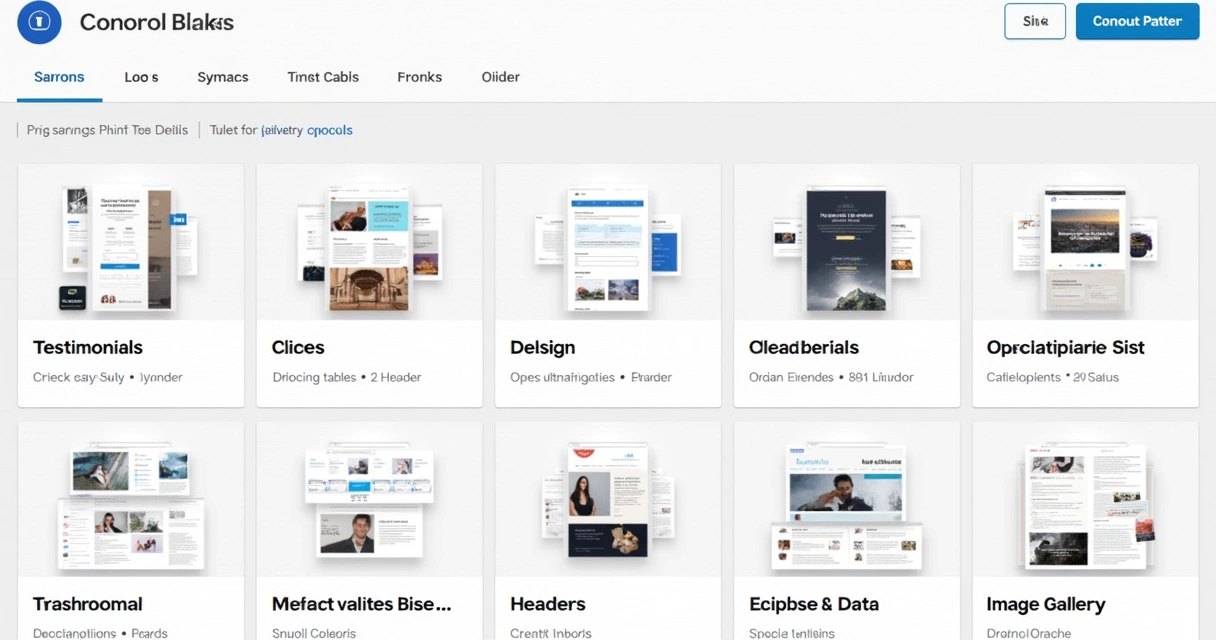
Block patterns are pre-made layouts—rows of columns, feature sections, testimonial sliders—which you insert, then fill the content to fit each need. Page templates, meanwhile, define the backbone for major site areas: landing pages, service lists, or product grids.
Patterns and templates bring design consistency, improve speed, and reduce manual errors in multi-project environments.
Making, saving, and using patterns
I start by designing a layout I know will be reused (a pricing grid, for example). Instead of saving as a single block, I select the region and save it as a pattern—new in recent editor versions. These patterns are then shared within the site, across teams, or even exported to use on other projects.
Clients get to focus on their unique message, not the scaffolding. In projects like those at André Luiz Abdalla, this system ties branding, messaging, and conversion into a repeatable process anyone on the team can follow—no matter their coding experience.
 When to use templates vs. patterns vs. reusable blocks
- Templates: Used for starting a whole page (like “About Us” or “Landing Page”), where the broad structure is already in place.
- Block patterns: Apply to sections within pages (like hero areas, callouts, or testimonial strips).
- Reusable blocks: Great for content bits you want perfectly synchronized site-wide (like a compliance disclaimer or signup form).
Custom blocks: Tailoring the editor
One area where my work as a developer really intersects the block editor’s flexibility is custom block creation. Sometimes, the needs of a site or agency exceed what core blocks offer. They may want a dynamic event calendar, a branded timeline, or special pricing widgets unique to their business.
With development experience, it’s possible to build or extend blocks using modern JavaScript (React, JSX), and integrate them into the block editor. This gives unmatched control for agencies or site managers with many clients, saving on plugin bloat and ensuring complete creative freedom.
Common uses for custom blocks
- Interactive product selectors
- Complex forms with custom logic
- Advanced testimonial sliders with brand integration
- Custom event manager blocks
- Integrations between WordPress and external APIs (like CRMs, or eCommerce platforms)
 If you’re interested in learning more about these technical capabilities, my integrations and development guides share resources and experiences from real-world builds.
Best practices for custom blocks
- Always document block options so editors (not just developers) know what to do.
- Follow WordPress’ coding standards so the block is fast and secure.
- Plan for accessibility—ensure anyone can interact with the content cleanly.
- Check mobile style and compatibility during testing, as these blocks often hold much of the site’s business value.
Integrations and compatibility: Smooth upgrades for existing sites
One concern I hear from business owners is whether switching to blocks will “break” older sites. In my experience, most well-maintained themes and plugins work well with both classic and new block systems. Still, it’s worth testing before a full rollout.
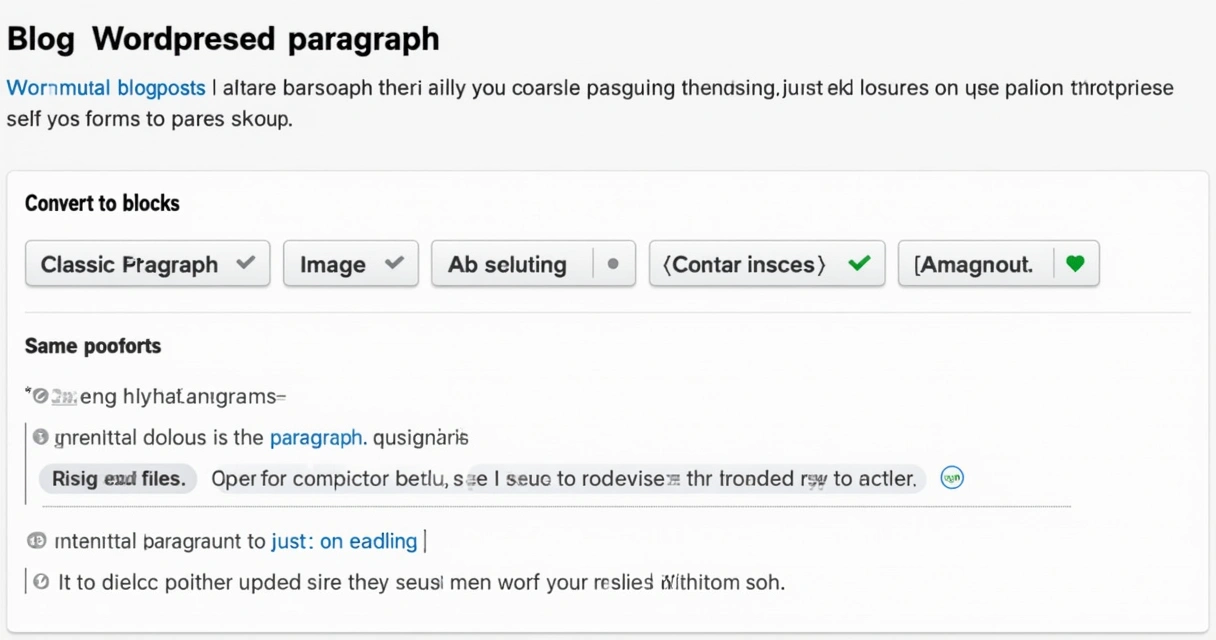
The editor was designed so legacy content is safe: classic posts open just as they always did, and you can convert old content to blocks in phases, not all at once. The University of Oregon reports that even after upgrading to WordPress 5.1.1, users could choose which editor they preferred—making the transition even smoother.
 Common issues, when they do crop up, usually relate to heavily customized themes. To address this:
- Test new edits on a staging site first.
- Check custom fields, widgets, or embedded scripts inside the new block layouts.
- For agency work, communicate to clients any changes to their editing workflow—it builds trust and helps avoid surprises.
In practice, gradual adoption is smoothest. Agencies can build new campaign pages with blocks, while keeping core content in classic layouts until teams are trained. As comfort grows, more of the site’s structure can shift to modular, visual editing.
Integrating third-party plugins and themes
Gutenberg’s modular system was built to be extended. In my own builds for André Luiz Abdalla customers, plugins continue to offer shortcodes, widgets, and now even their own blocks—be it for SEO tweaks, custom forms, or analytics dashboards.
Custom themes can add support for block-specific styles, ensuring brand colors and layouts remain consistent. When updating old themes, I check:
- Style compatibility—make sure your typography and color settings extend to all block variations.
- Responsive behaviour—test that every block layout adapts to modern mobile standards.
- Security—scan new block code to ensure nothing exposes user data or creates risks.
For long-term maintenance, knowing that the block editor plays well with site extensions makes planning easier for businesses that depend on their web presence.
The block editor’s time-saving features for agencies and busy professionals
I see many agencies and solo site managers struggle with repeat requests—landing pages, quick fixes, layout shifts. The block editor, used smartly, offloads much of this busywork and helps teams focus on value-added tasks.
Time saved on content creation is time earned for real strategy.
Features that make a difference in day-to-day work
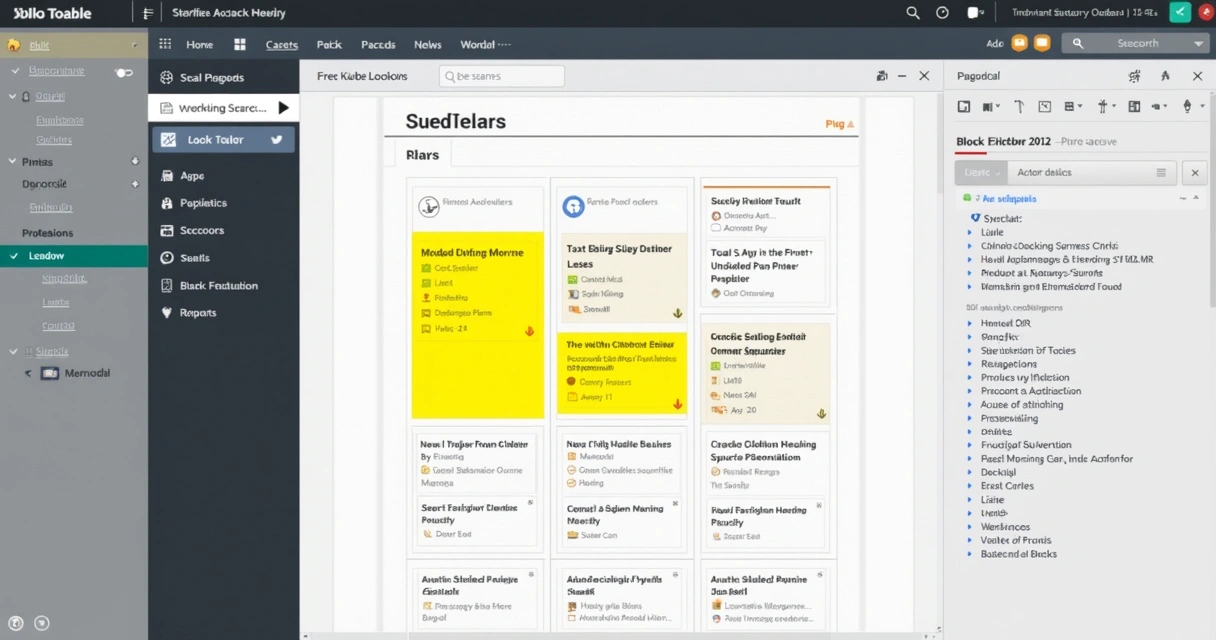
- List View: A sidebar map of all blocks on a page, so you can jump, drag, or review structure instantly (City University of New York recommends this for workflow clarity).
- Drag-and-drop reorder: Move blocks by dragging—helpful on longer, multi-section pages.
- Quick Styles: Change colors, spacing, or fonts without writing custom CSS.
- Undo/redo history: Non-linear editing, so you’re never afraid to try new layouts.
- Instant media embeds: Paste media URLs, and WordPress creates the correct block automatically—cutting steps in half.
- Reusable and synced blocks: As covered before, updates happen site-wide with a single change.
- Block locking: For sections you don’t want team members or clients to move or break, especially on high-stakes landing pages.
This toolset puts highlight-then-change power right at your fingertips. Agencies that equip clients with these skills see fewer support requests and speedier project delivery across the board.
Real-world use cases: Workflow and management made practical
I’ve seen plenty of transformation stories with the block editor, but a few stand out when talking about workflow. For example, consider a digital marketing agency tasked with rolling out a dozen campaign microsites for a large client. The requirements? Shared branding, flexible messaging, unique calls-to-action, and last-minute edits by marketers who may never have written a line of CSS.
Here’s how the modular editing approach solved the problem:
- The designers created a kit of block patterns (hero areas, conversion forms, client logos, testimonials) all branded to the client’s guidelines.
- The marketing team built new microsites by cloning base templates and mixing these patterns, dropping in new text and CTAs for each campaign.
- If a promotion changed, only the relevant block (e.g., the lead form) was edited and instantly replicated across all sites.
- Developers occasionally dropped in custom blocks for special ad integrations or A/B testing widgets.
- Marketers previewed content on mobile, tablet, and desktop—all from the main editor.
The outcome: the agency built and managed more projects in less time, while the clients kept brand control and agility. No bottlenecks.
 In my own client work, especially within André Luiz Abdalla’s projects, I’ve found that providing documented reusable blocks and templates helps everyone—writers, designers, and developers—participate in site updates without stepping on each other’s toes.
Managing multiple client projects
For freelance professionals and agencies juggling many WordPress sites, the block editor makes scaling easier. Here are the keys I recommend:
- Create a set of universal, reusable blocks for brand assets, disclaimers, lead magnets, etc., which you can import into each client’s site.
- Develop a “pattern library” for each sector you serve (real estate, education, SaaS, etc.)—each with design blocks tuned for specific business goals.
- Use documentation and naming standards, so it’s obvious if a block is client-specific or intended for global sharing.
- Assign key site editors to review blocks before publishing, preventing mistakes and maintaining consistency.
My blog documents real cases of how these methods evolved, such as in this practical breakdown of custom block organization in a multi-brand site project.
Tips and tools to extend the Gutenberg editor
Beyond what comes in WordPress core, there are many ways to add value or unique features to the block editor experience.
The block editor grows with your needs, not just out of the box.
Custom block packs and plugins
Developers can create packs of blocks—styled to match a brand, designed to fit unique workflows, or with interactive widgets. A well-coded block pack becomes a toolkit for teams or agencies, and can often replace older plugins or manual workarounds.
Open APIs and external integrations
It’s possible to connect the WordPress editor with CRM systems, subscription management, or external analytics. I routinely develop blocks that talk to third-party tools, streamlining business process without hacking core files.
If you’re curious about real-world integrations, my integration case studies detail building and extending sites for different business domains.
Theme support for block styles
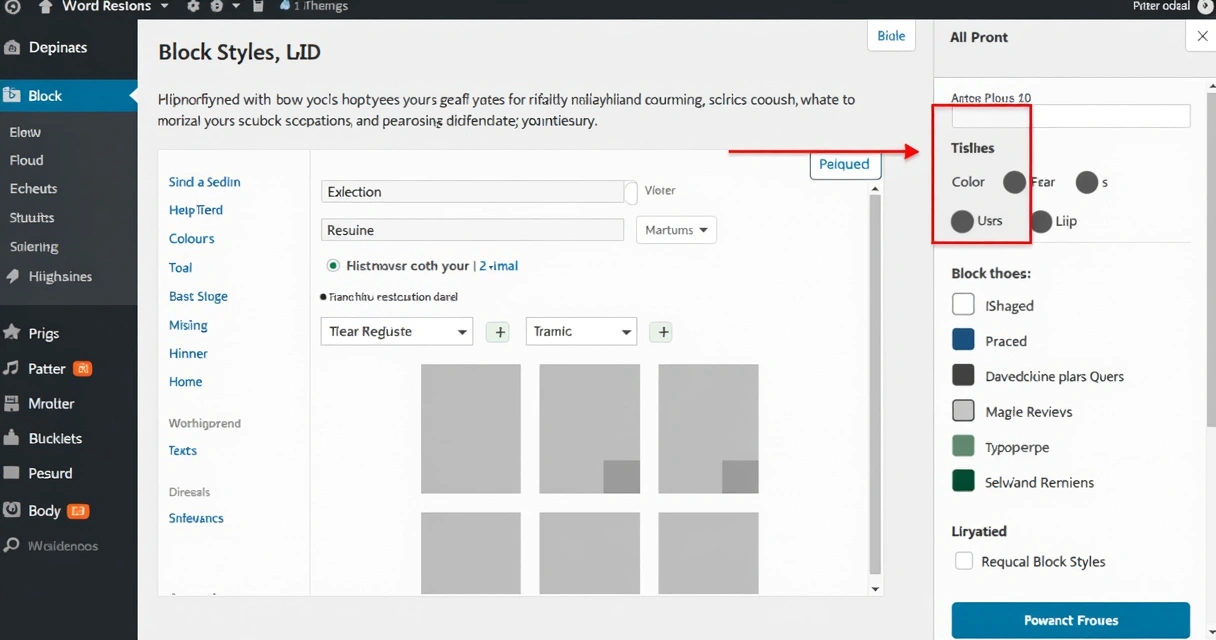
A modern WordPress theme should declare “full support” for the block editor’s style system. This ensures block backgrounds, text sizes, spacing, and button shapes all comply with your site’s brand. If you are designing a custom theme, invest time in these controls—you will save far more time on day-to-day editing.
 Page structure and accessibility auditing
When working on larger projects, tools like list views, accessibility checks, and headings structure validation help maintain site quality. Make sure each page has a clear outline, descriptive alt text, and follows accessibility standards—this is as much for your users as for search performance.
Best practices for fast, flexible, and error-free block editing
Through years of iterations, I’ve identified patterns that consistently produce better-built pages and less cleanup later. If you are aiming for growth with minimal pain, adopt these best practices:
- Plan layouts with wireframes first. Knowing the structure saves rework as you add blocks.
- Use groups and columns to nest related content. Blocks inside a group can be moved together. This makes it simpler to reorder or duplicate entire page sections.
- Preview often. Jump between desktop, tablet, and mobile modes to catch alignment or stacking issues before they sneak onto published pages.
- Write alt text and headings for accessibility and SEO. Search engines and users with screen readers will thank you.
- Document naming and usage standards for your team. Consistency, especially in block and pattern names, avoids confusion.
- Regularly audit reusable blocks to ensure only current versions are in use. Remove or update anything out of date.
- Lock core blocks and patterns on client sites you manage. Prevents accidental edits to key branding or navigation sections.
- Update themes and block plugins carefully. Always test before rolling out on live sites, especially with custom code.
 How the Gutenberg editor supports agency workflows
Working with agencies, I’ve watched the editor simplify handoff, brand consistency, and team onboarding. Instead of writing plugin documentation or procedural manuals, teams now get pre-built blocks, well-named patterns, and minimal training documents.
Even when integrating with third-party platforms, WordPress’ block editor keeps the editing workflow native. The result is better client satisfaction, fewer support tickets, and a more reliable digital presence.
These benefits compound with scale. Agencies serving dozens of clients can maintain hundreds of pages with fewer headaches, as layout errors and styling drift vanish. When updates are needed, one centralized block or pattern edit does the job.
Key takeaways: Why blocks matter for flexible WordPress layouts
If I had to distill what I’ve learned through years of WordPress and project support, I’d focus on these essentials:
- The block editor turns every piece of content into a manageable, modular building block. This cuts down on mistakes, lets non-coders help, and gives agencies a repeatable toolkit.
- Reusable blocks, patterns, and templates save agencies and busy professionals hours by reducing repetition and error—making multi-client management achievable.
- You can extend the block system with custom development to bring unique features or brand style, streamlining integration with existing platforms or business tools.
- The editor was designed for smooth transition and strong backward compatibility, so older sites remain stable as you move content to blocks at your own pace.
- Focusing on best practices—planning, accessibility, and block management—creates sites that are both stunning and simple to manage.
As I have seen in my own journey and in the projects I run at André Luiz Abdalla, learning and using the block editor unlocks better outcomes for teams, agencies, and all professionals who depend on WordPress. Blocks are more than just a new layout tool—they are a foundation for modern web building.
Conclusion: Build smarter, faster, and more flexible websites
Throughout this guide, I’ve unpacked how the block-based editor in WordPress brings new energy to website building for businesses, agencies, and solo professionals. The transition from classic content areas to modular blocks isn’t about “new for new’s sake”—it’s about working faster, with less need for technical fixes, and with more control for everyone involved.
Clients, designers, and marketers all benefit from a visual, repeatable process for crafting pages. Teams spend time improving content, not fixing design errors, while agencies can manage complexity at scale. Whether you’re launching a new product, spinning up campaign sites, or modernizing a corporate hub, this approach brings measurable rewards.
If you are ready to build a secure, high-speed, and future-proof WordPress presence—or even if you just want guidance on using the block editor for your next project—I encourage you to get in touch with me and discover how my project can support your goals.
Frequently Asked Questions
What is the Gutenberg editor in WordPress?
The Gutenberg editor is WordPress’s block-based content builder, introduced in version 5.0, which allows users to create posts and pages by arranging movable blocks for text, media, and dynamic content. Unlike the classic editor’s text area, it gives a visual and modular way to compose complex layouts without needing coding skills. Studies from universities such as University of California, Irvine show how it improves accessibility for non-developers and modernizes site creation.
How do I create flexible layouts in Gutenberg?
Flexible layouts are built by adding structural blocks like columns, groups, and patterns. You start by mapping your content sections, then using the insert (+) tool to build them block-by-block, mixing headings, images, and custom blocks as needed. Visual feedback and the ability to rearrange blocks let you adapt design on the fly. For extra efficiency, reusable blocks and pre-built patterns help agencies and professionals repeat layouts across many pages or sites.
Can I build responsive pages with Gutenberg?
Yes, the block editor lets you preview and adapt layouts for mobile, tablet, and desktop screens. Most blocks (such as columns or groups) have settings to control stacking and alignment based on device, helping you design responsive, mobile-friendly pages. Always preview your layout in all three modes to ensure a consistent user experience. Accessibility and responsive view tools are built in for further checks.
What are Gutenberg blocks and how to use them?
Blocks are the core elements in the editor, representing pieces of content like paragraphs, images, buttons, galleries, and more. You add blocks by selecting the “+” icon in the editor and choosing the type you need, then customize each with settings such as color, spacing, and alignment. Blocks can be combined, grouped, converted into reusable blocks, or arranged into columns and patterns to create more complex layouts without coding.
Is Gutenberg better than classic WordPress editor?
For most users and agencies, the block-based editor offers significant advantages in flexibility, visual design, and time savings compared to the classic TinyMCE editor. While the Classic Editor remains available for legacy support, the block editor is now the default for new sites and supports richer content, modular layouts, and direct feedback during editing. This shift is confirmed by reports from both City University of New York and University of Oregon that showcase increased workflow agility and broader accessibility for all content creators.