






In the dynamic world of website management, maintaining multiple WordPress client sites can quickly become overwhelming. As a seasoned WordPress developer, you understand the critical importance of routine maintenance for security, performance, and functionality. Automating these maintenance tasks can save you time and reduce the potential for human error, allowing you to focus on delivering exceptional service to your clients.
Why Automate WordPress Maintenance?
Automating WordPress maintenance offers several advantages:
- Time Savings: Automation reduces the time spent on repetitive tasks, freeing up resources to concentrate on more strategic initiatives.
- Consistency: Ensures that maintenance tasks are performed uniformly across all client sites, minimizing the risk of oversight.
- Improved Security: Regular updates and backups can enhance security, protecting against vulnerabilities.
- Enhanced Performance: Automated optimizations can keep sites running smoothly, improving user experience and search engine rankings.
Key Maintenance Tasks to Automate
Here are the essential maintenance tasks you should consider automating:
- Core WordPress Updates: Keeping WordPress core, themes, and plugins updated is crucial for security and performance.
- Backups: Regular backups ensure that you can restore sites in case of failure or attack.
- Database Optimization: Over time, databases can become bloated. Automating optimization can improve performance.
- Security Scans: Regular scans can help identify vulnerabilities before they are exploited.
- Uptime Monitoring: Ensures that you are alerted immediately if a site goes down.
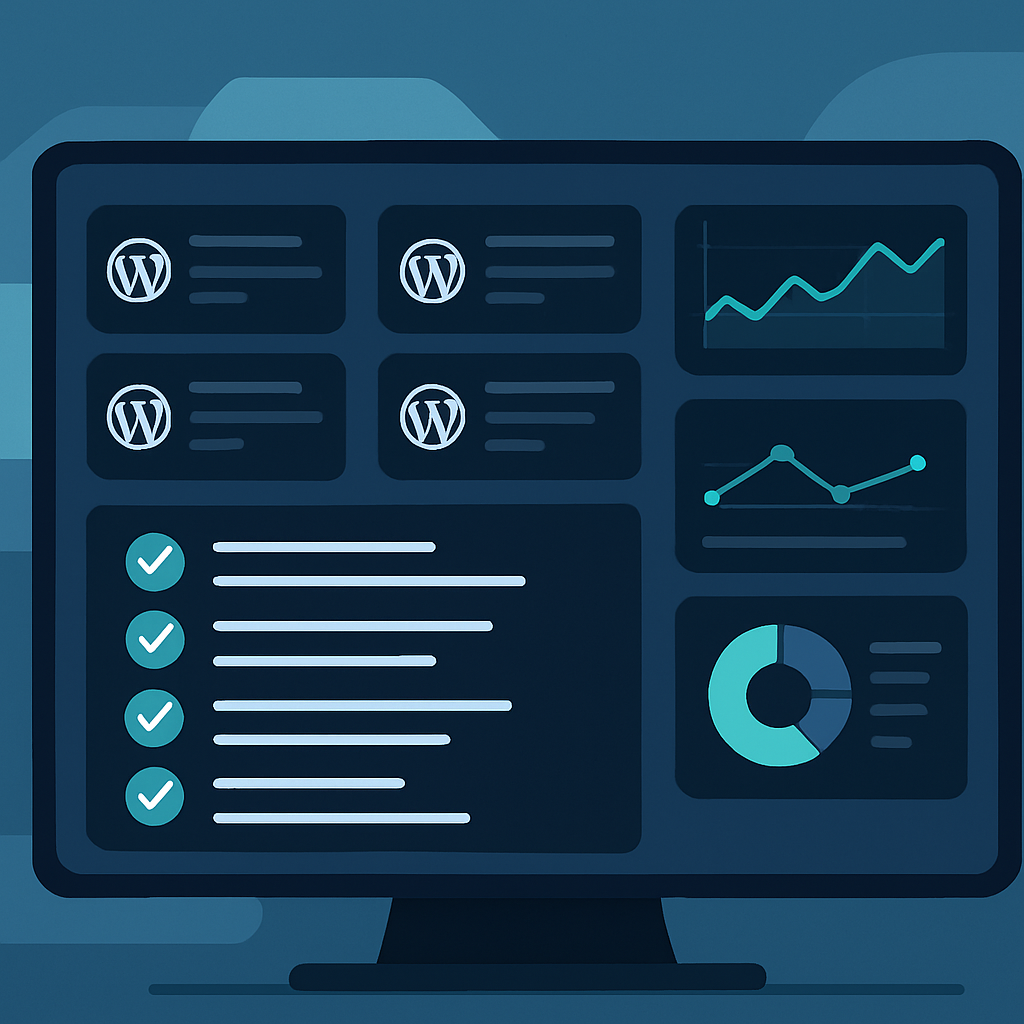
Steps to Automate Maintenance for Client Sites
To successfully implement automation for WordPress maintenance, follow these practical steps:
1. Choose the Right Tools
Select automation tools that suit your needs. Popular choices include:
- ManageWP: An all-in-one solution for managing multiple WordPress sites. It offers backups, updates, security checks, and more.
- MainWP: A self-hosted alternative that provides similar functionalities to ManageWP, allowing you to maintain control over your data.
- WP CLI: A command-line interface that can automate various WordPress tasks through scripts.
2. Set Up Automated Backups
Utilize plugins such as UpdraftPlus or BackupBuddy. Schedule regular backups to cloud storage solutions like Google Drive or Dropbox.
3. Schedule Automatic Updates
Configure WordPress to automatically apply updates for core, themes, and plugins. Ensure you test updates on a staging site before applying them to live sites.
4. Implement Security Measures
Use security plugins like Wordfence or Sucuri to set up automatic scans and alerts. Schedule these scans at regular intervals.
5. Optimize Database Regularly
Plugins like WP-Optimize can automatically clean up and optimize your database on a set schedule.
6. Monitor Site Uptime
Use services like UptimeRobot or Pingdom to get alerts if any site goes down. Automate the reporting of downtime to streamline your response.
Best Practices for Automation
To ensure effective automation, consider the following best practices:
- Test Everything: Always test automated processes in a safe environment before rolling them out to live sites.
- Regularly Review Automation Settings: Periodically check your automation settings to ensure they are still relevant and effective.
- Document Processes: Maintain clear documentation of your automation strategies for training and reference purposes.
- Monitor Performance: Keep an eye on site performance metrics to identify any issues that automation may overlook.
Common Challenges and Solutions
While automation is effective, it can present challenges:
- Over-Reliance on Automation: Ensure that you maintain some manual oversight to catch issues that automation may miss.
- Configuration Errors: Double-check configurations to avoid missteps that could impact site functionality.
- Plugin Conflicts: Regularly update and monitor plugins to avoid compatibility issues that can arise from automated updates.
Conclusion
Automating WordPress maintenance for multiple client sites is a strategic move that can enhance efficiency, improve security, and ensure optimal performance. By following the steps outlined above and adhering to best practices, you can streamline your workflow, allowing you to focus on delivering high-quality services to your clients.
Frequently Asked Questions
- What are the benefits of automating WordPress maintenance?
- Automating maintenance saves time, ensures consistency, improves security, and enhances performance across multiple client sites.
- What tools can I use for automating WordPress maintenance?
- Popular tools include ManageWP, MainWP, and WP CLI, each offering various features for managing multiple sites.
- How often should I schedule backups?
- It’s recommended to schedule daily backups for high-traffic sites and weekly backups for others, depending on the frequency of content updates.
- Can I automate updates for all plugins and themes?
- Yes, WordPress allows you to enable automatic updates for core, themes, and plugins, although it’s advisable to test updates on a staging site first.
- What should I do if an automated update causes issues?
- You can revert to a previous backup if an update causes issues. Regular backups will minimize downtime and data loss.
- How do I monitor uptime for multiple sites?
- Use services like UptimeRobot or Pingdom, which provide alerts for downtime and can monitor multiple sites simultaneously.
- Is it safe to rely on automated security scans?
- While automated scans are beneficial, they should not replace manual security checks and audits. Regularly review your security measures.
- How can I optimize my WordPress database automatically?
- Plugins like WP-Optimize allow you to set schedules for database optimization to keep it running efficiently.